AnySpace Tips
Follow the screenshots to show app names on your Home Screen and lock apps when you choose.
Home Screen
Add the AnySpace widget to your Home Screen
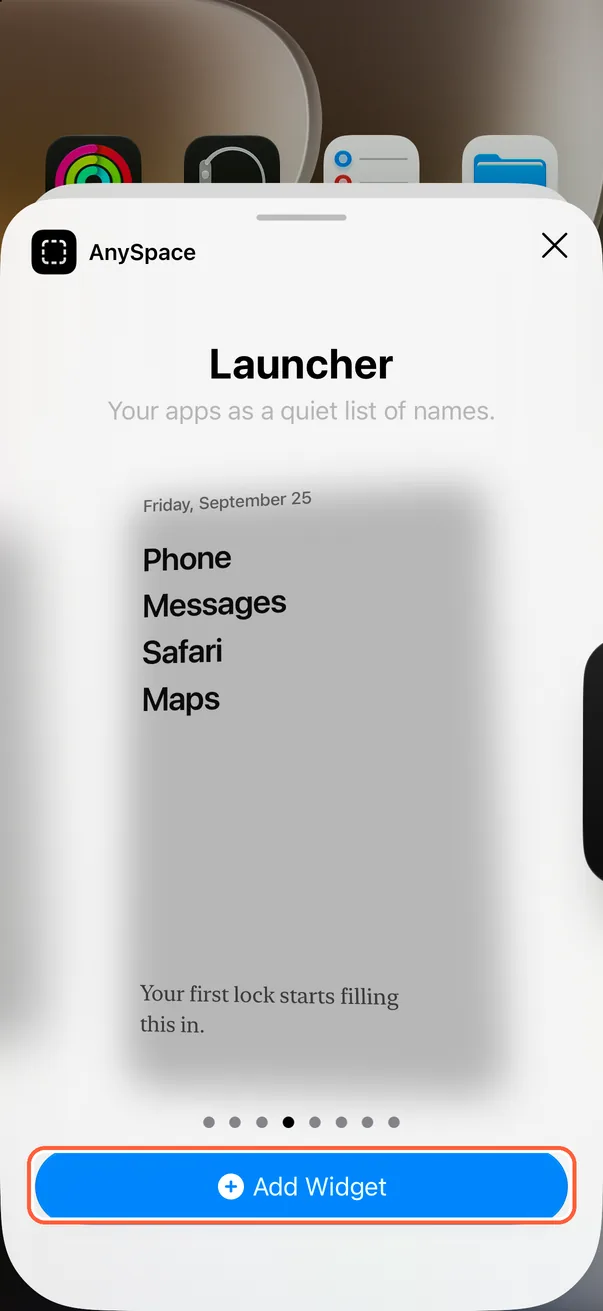
This widget shows app names as a text list instead of icons. Add its largest size to fill most of a Home Screen page.
-
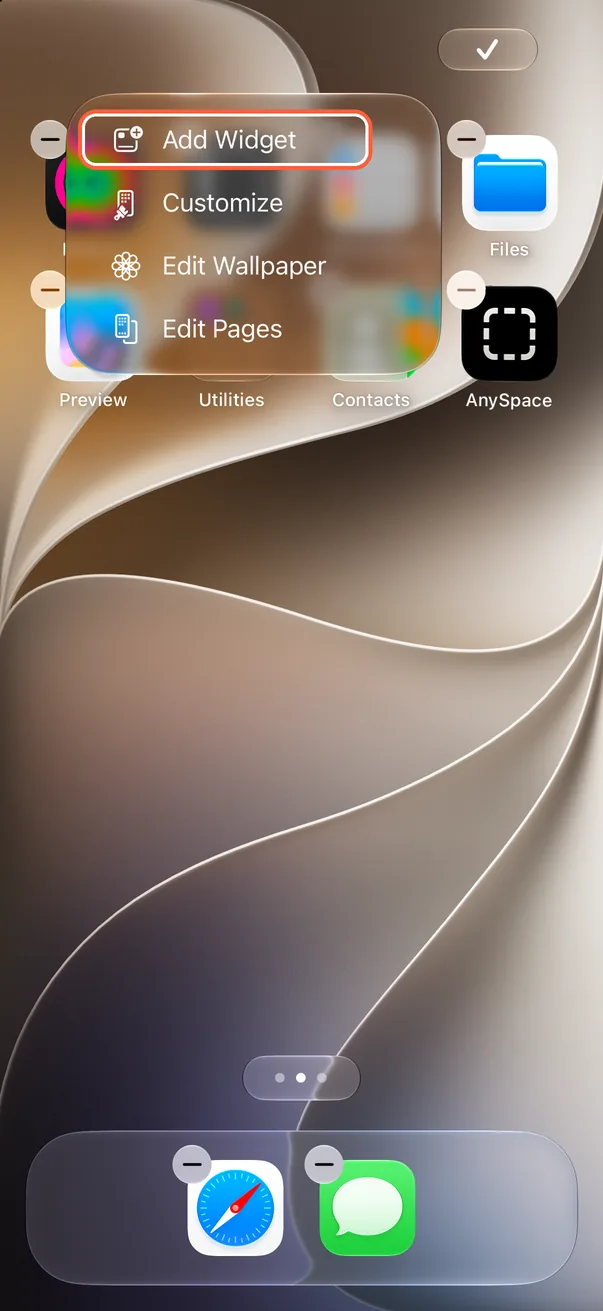
Open Home Screen editing
Touch and hold an empty spot on your Home Screen, tap “Edit” in the top-left corner, then tap “Add Widget.”
-
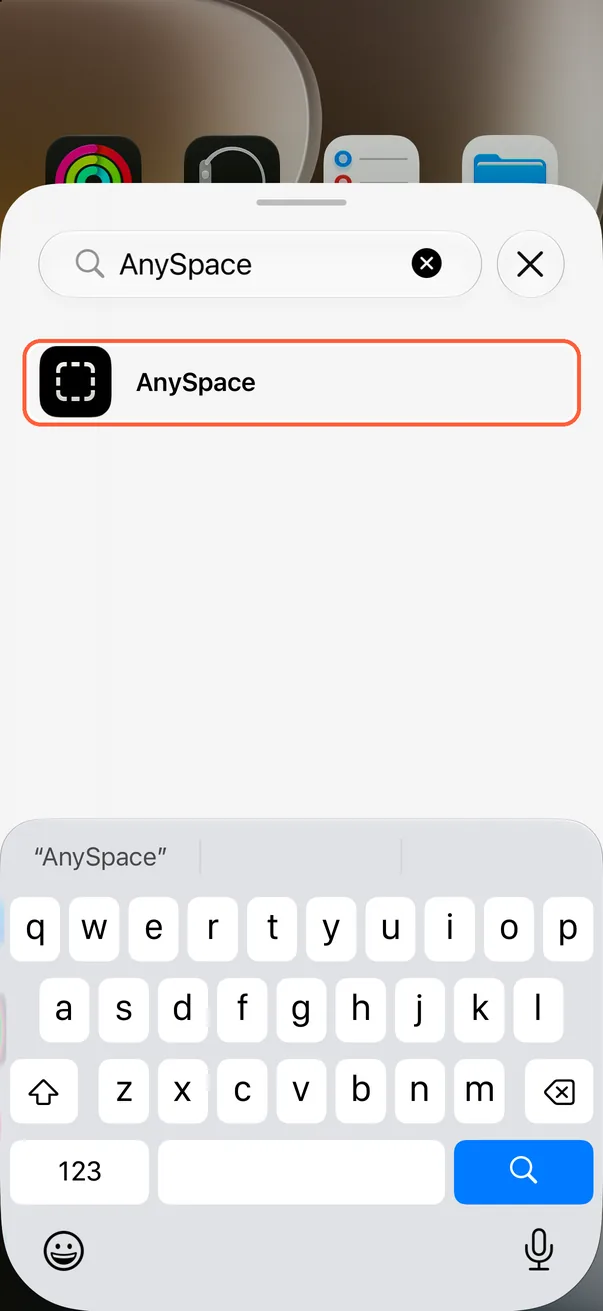
Search for AnySpace
Type AnySpace in the search field at the top, then tap it in the results.
-
Pick the largest size
Swipe to the largest size, then tap “Add Widget.”
-
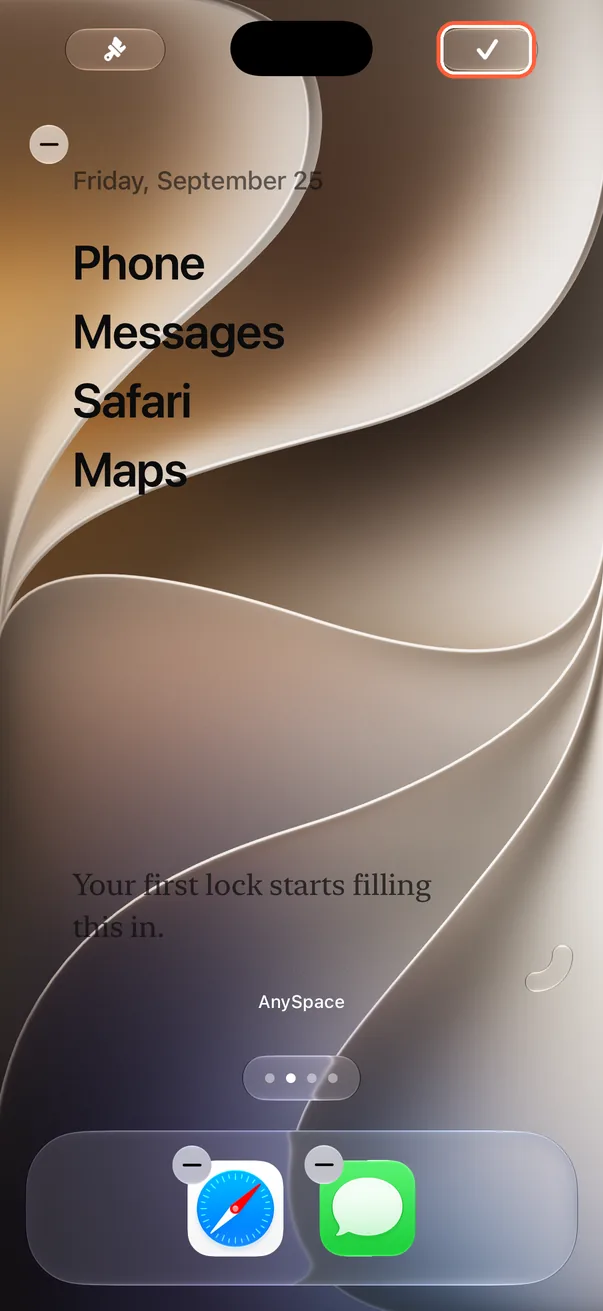
Tap the check mark
Place the widget, then tap the check mark in the top-right corner to finish editing.
-
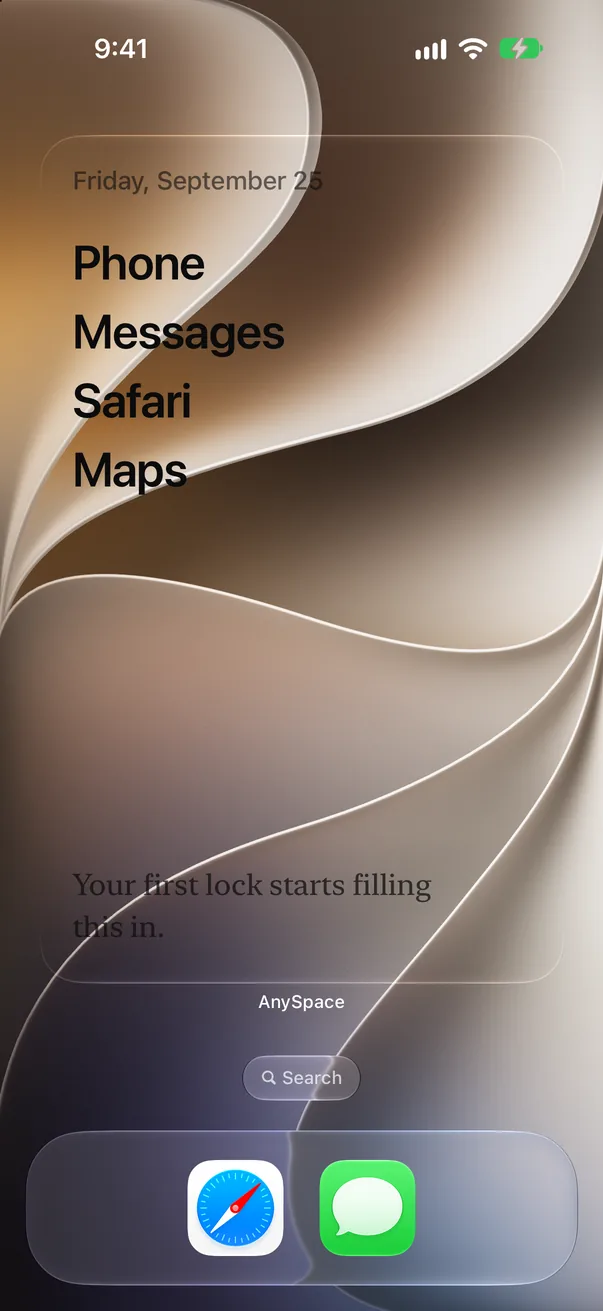
See the app names
The widget starts with default apps such as Phone and Messages. The next tip shows how to change them.
Choose the apps the widget shows
In “Edit Widget,” choose an installed app for each row. Tap a name in the widget to open that app.
-
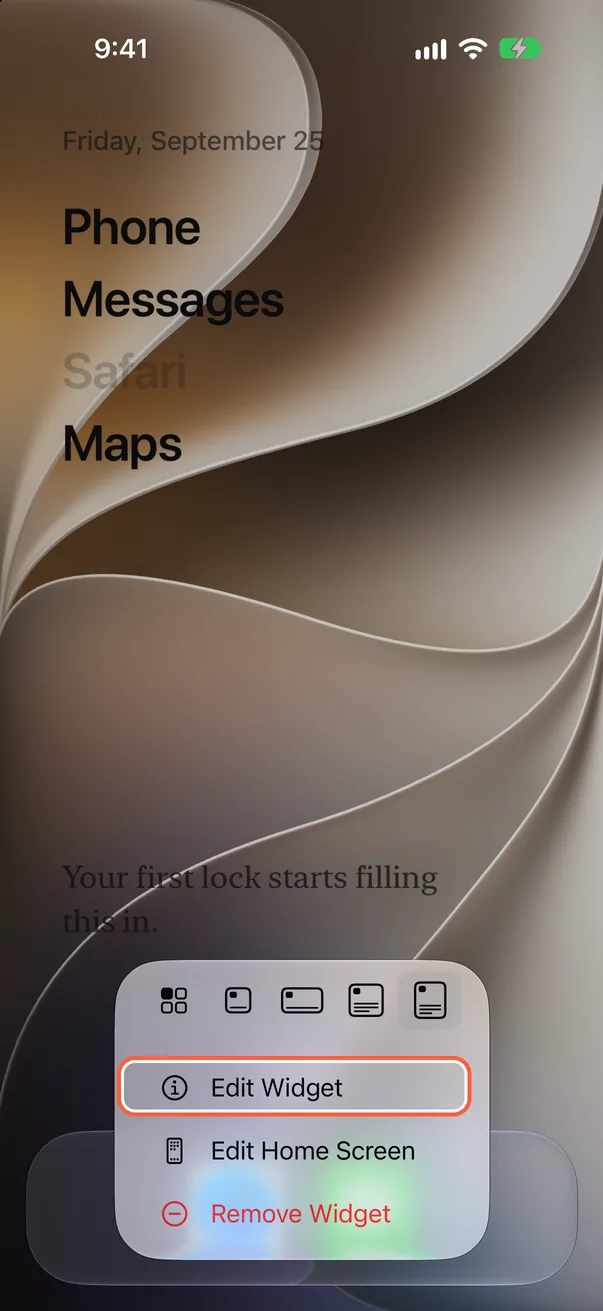
Open Edit Widget
Touch and hold the widget on your Home Screen, then choose “Edit Widget.”
-
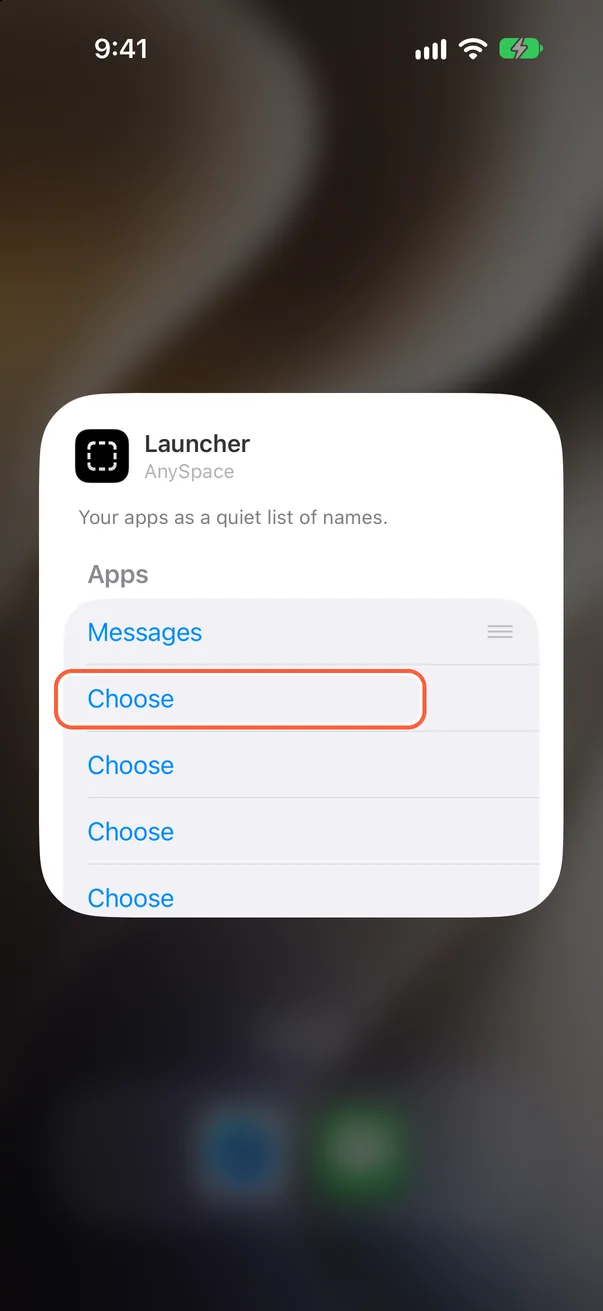
Tap “Choose”
Tap “Choose” in an app row. You can select one app per row.
-
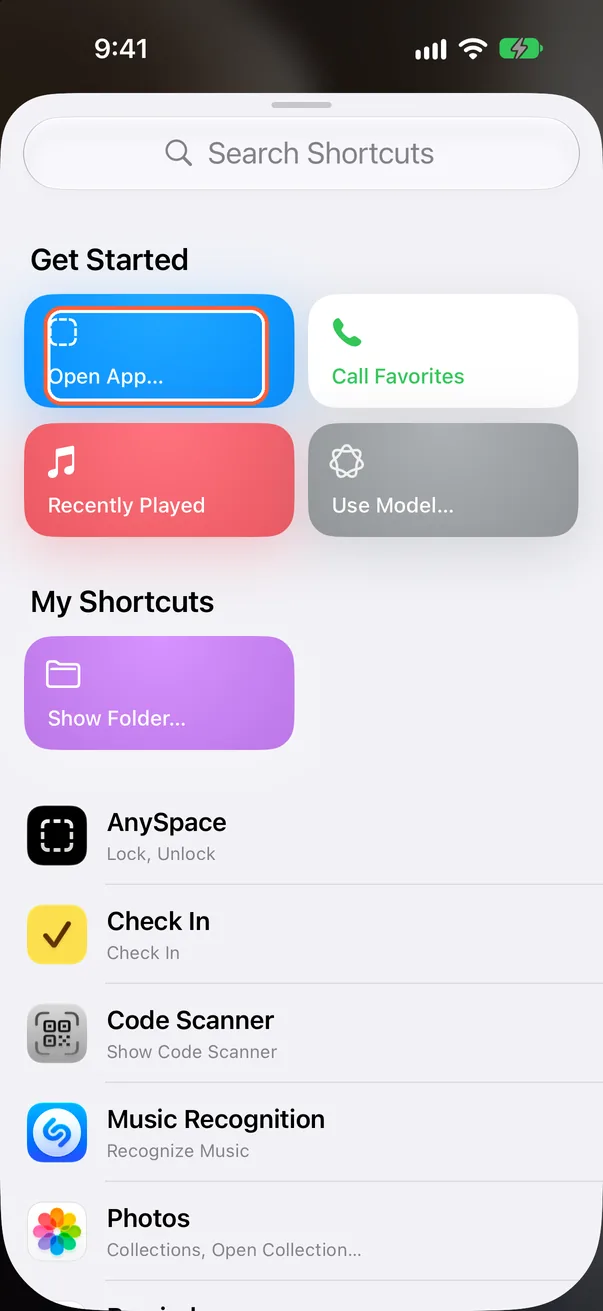
Choose “Open App…”
Tap “Open App…” at the top of the list.
-
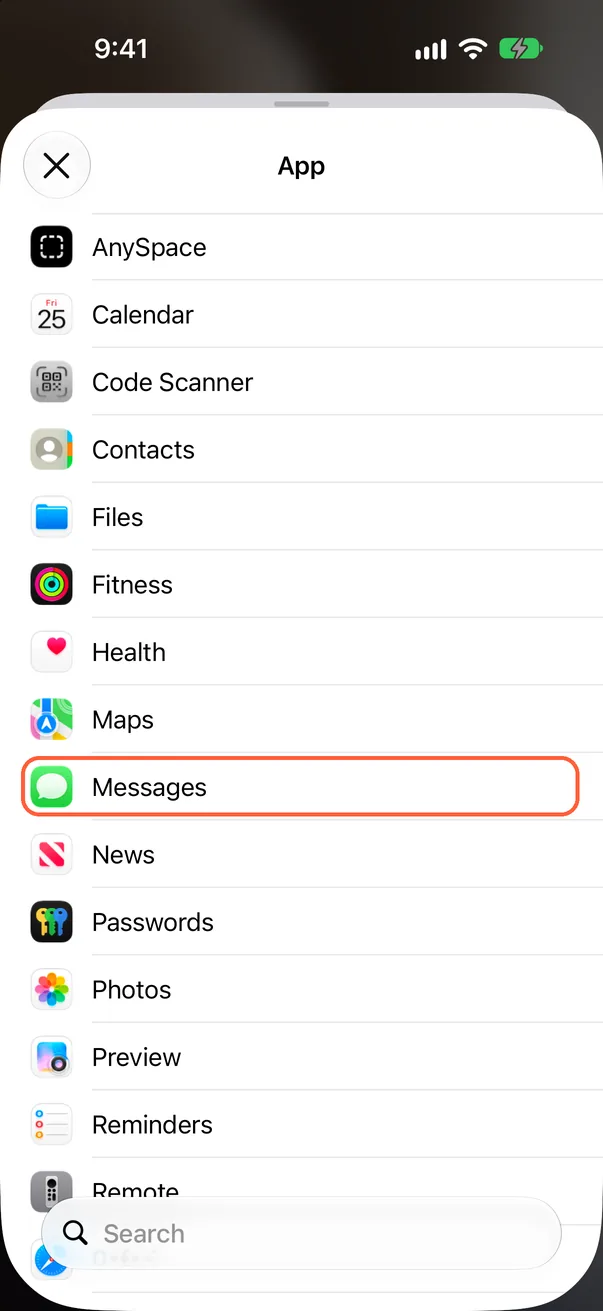
Pick an app
Tap the app you want from the list of installed apps.
-
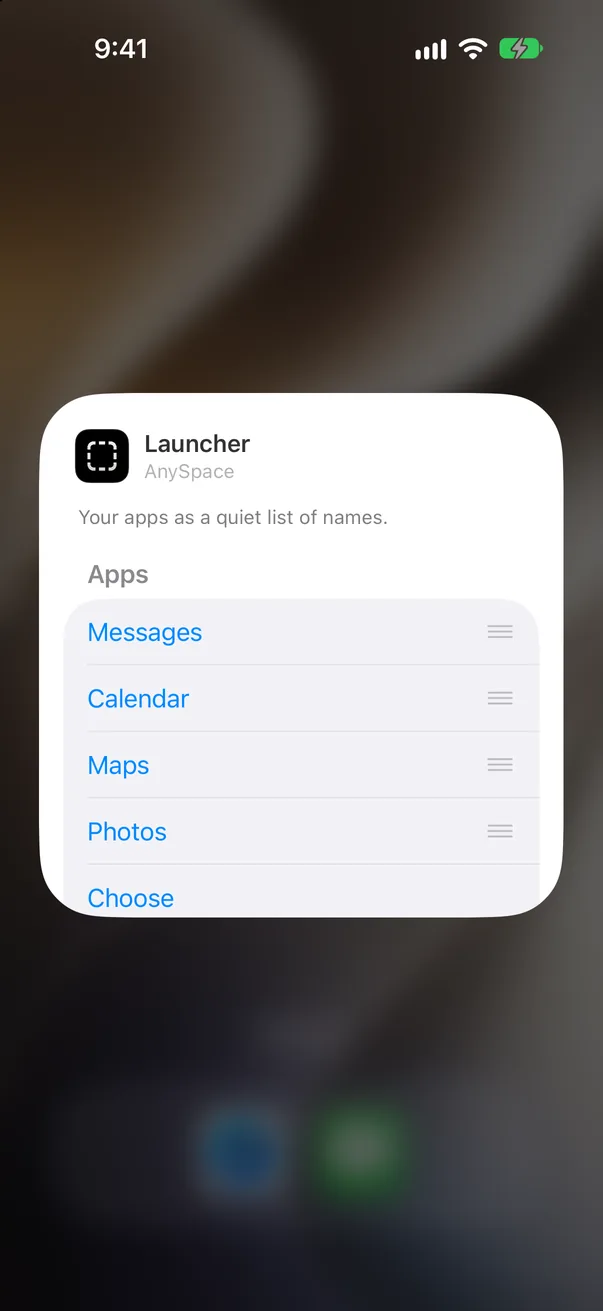
Fill the other rows
Choose apps for the other rows the same way. Drag the handles on the right to change their order.
-
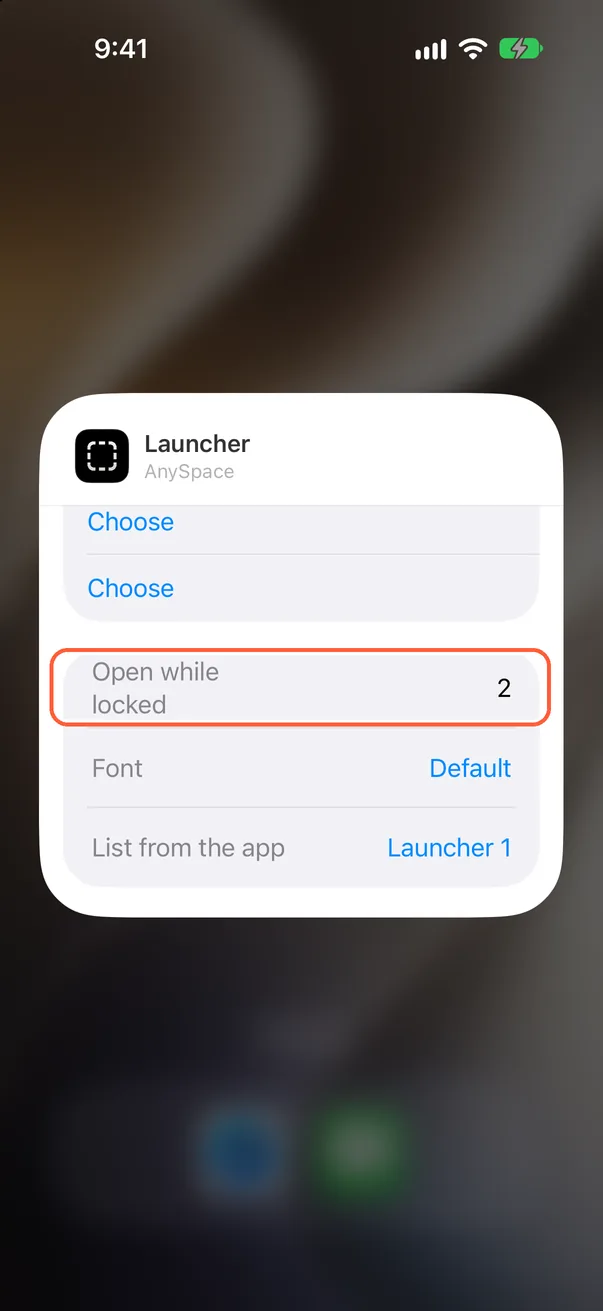
Set the locked rows and font
Scroll down to “Open while locked” and set how many rows, starting at the top, stay usable in the widget during a lock. You can also change the font here.
-
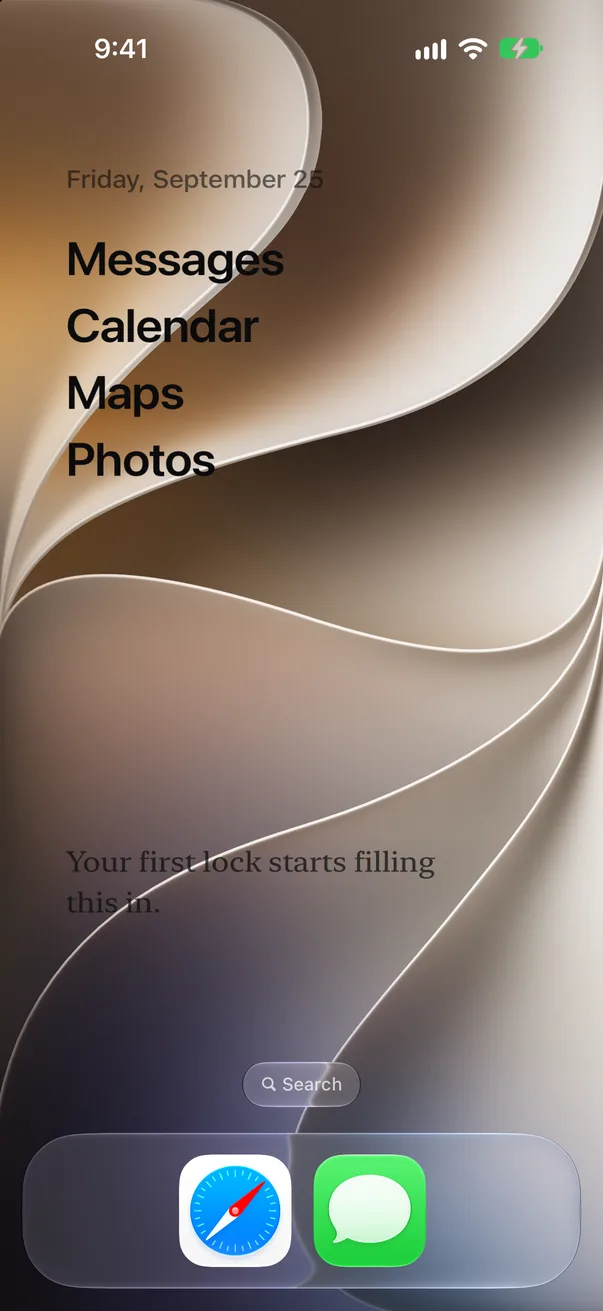
Finish editing
Tap outside the widget to save. The widget shows the app names you chose.
Hide the “AnySpace” label under the widget
Large app icons hide the labels under apps and widgets, including “AnySpace.”
-
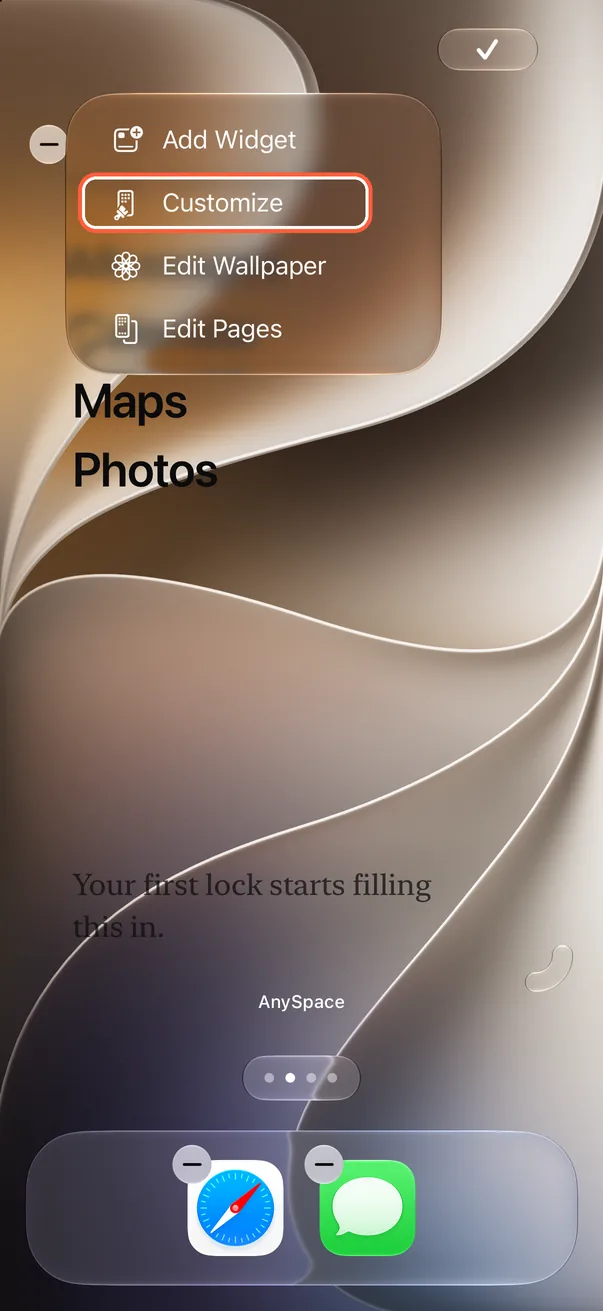
Open Customize
Touch and hold an empty spot on your Home Screen, tap “Edit” in the top-left corner, then choose “Customize.”
-
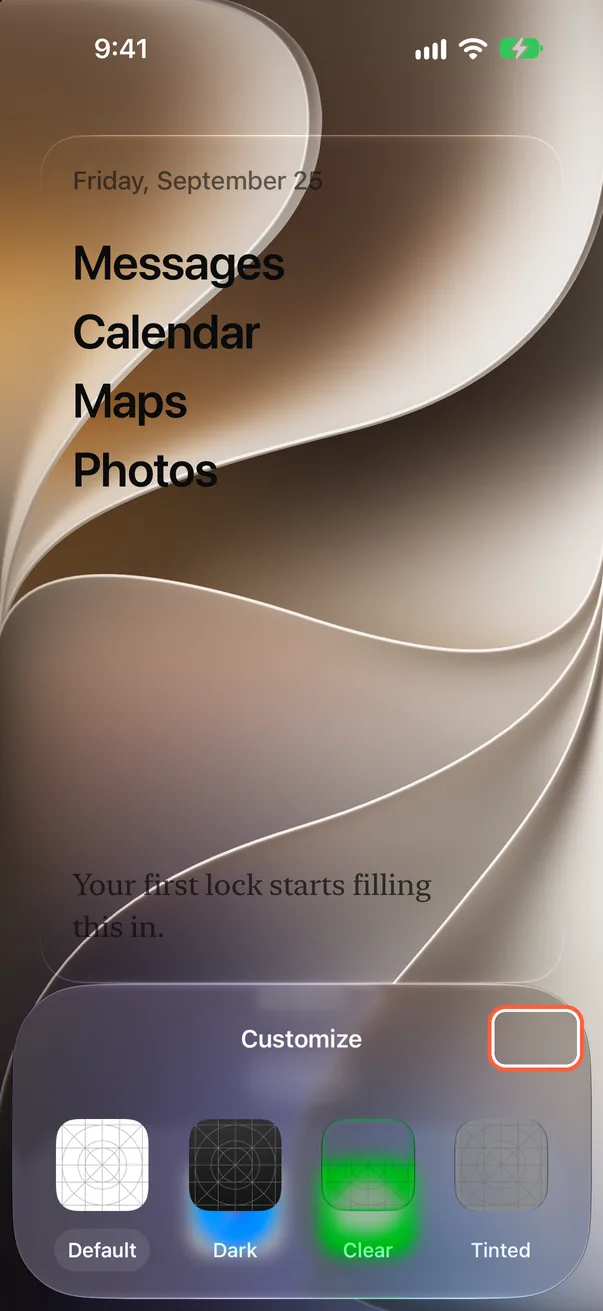
Turn on large icons
In the panel at the bottom, tap the large app icon button in its top-right corner.
-
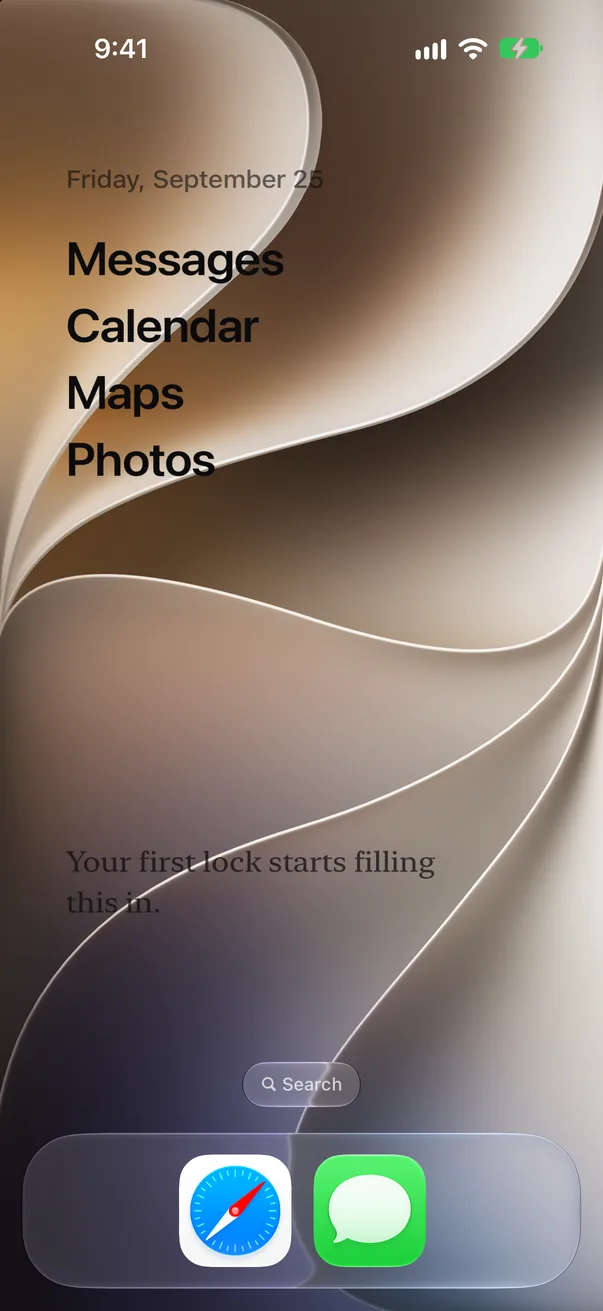
The label is gone
Tap an empty spot to close the panel. The “AnySpace” label under the widget is hidden.
Hide your other Home Screen pages
Show the page with the AnySpace widget and hide your other Home Screen pages.
-
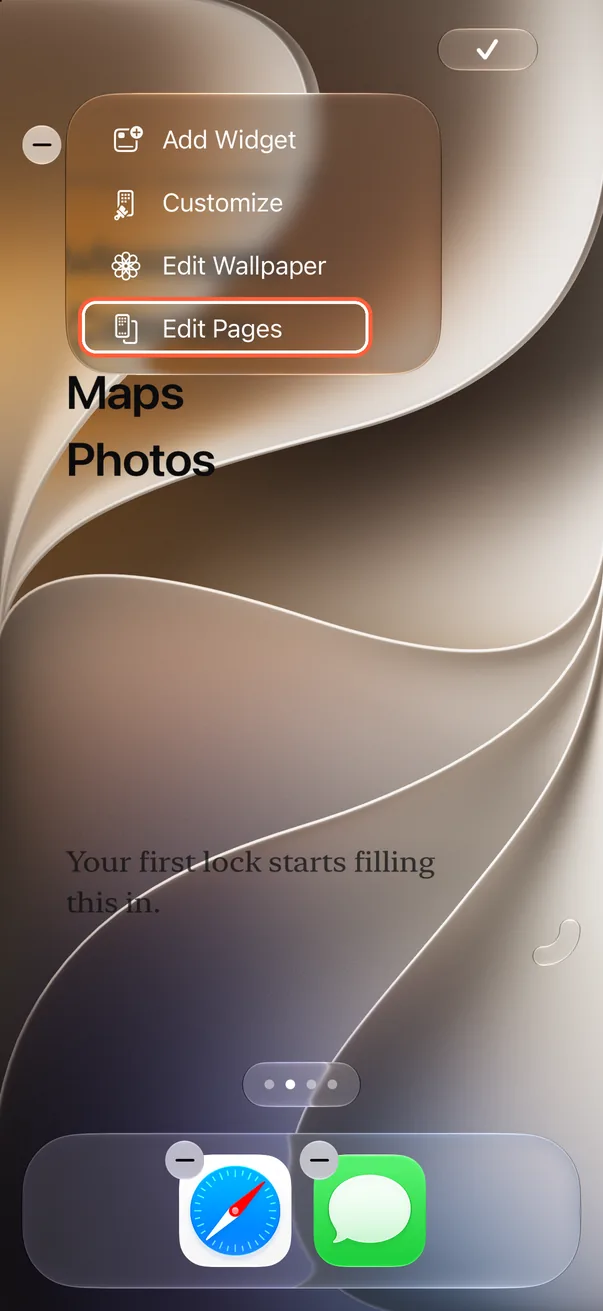
Open Edit Pages
Touch and hold an empty spot on your Home Screen, tap “Edit” in the top-left corner, then choose “Edit Pages.”
-
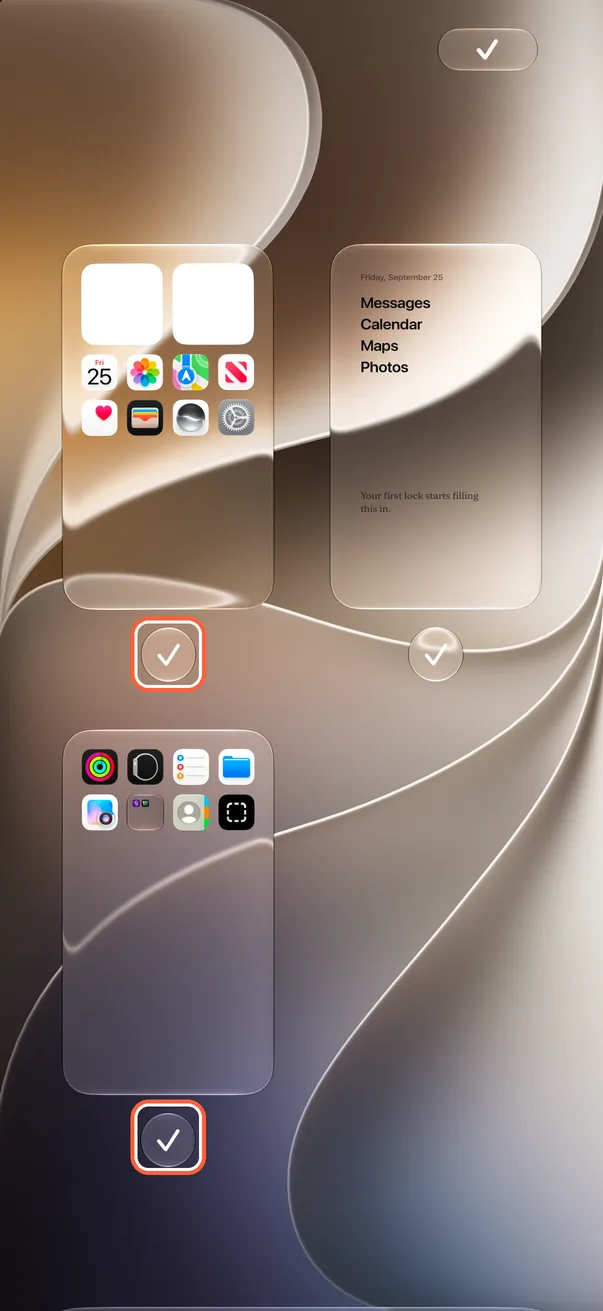
Uncheck the other pages
Leave the page with the AnySpace widget checked. Tap the check mark under each other page to clear it.
-
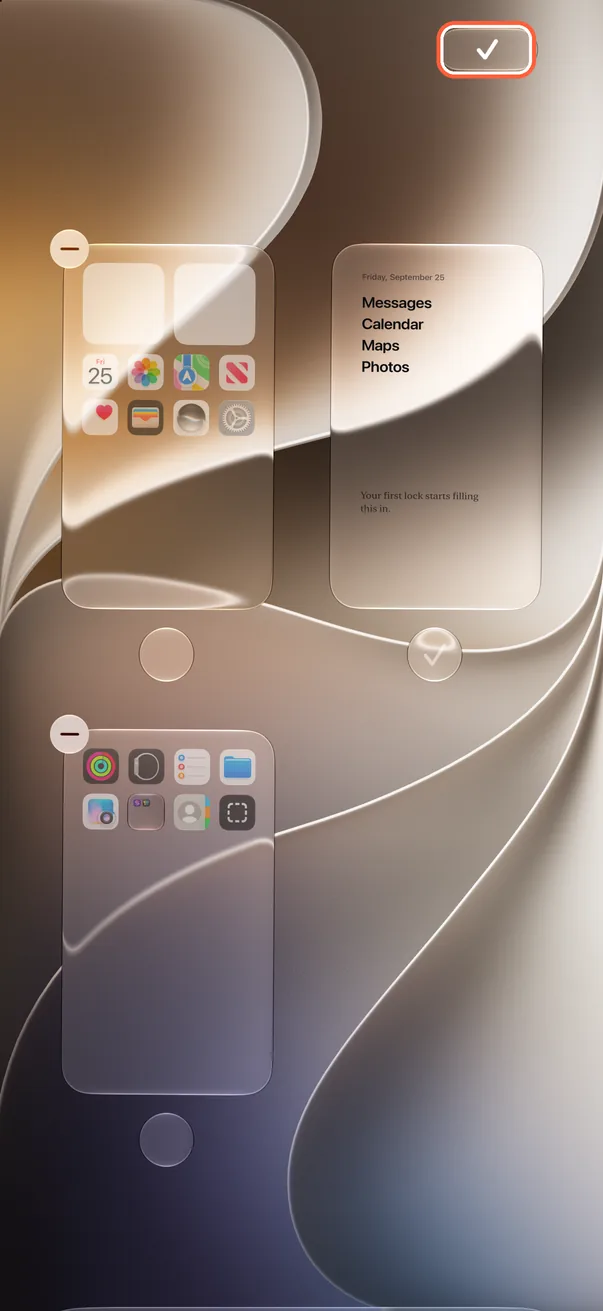
Tap the check mark
Tap the check mark in the top-right corner.
-
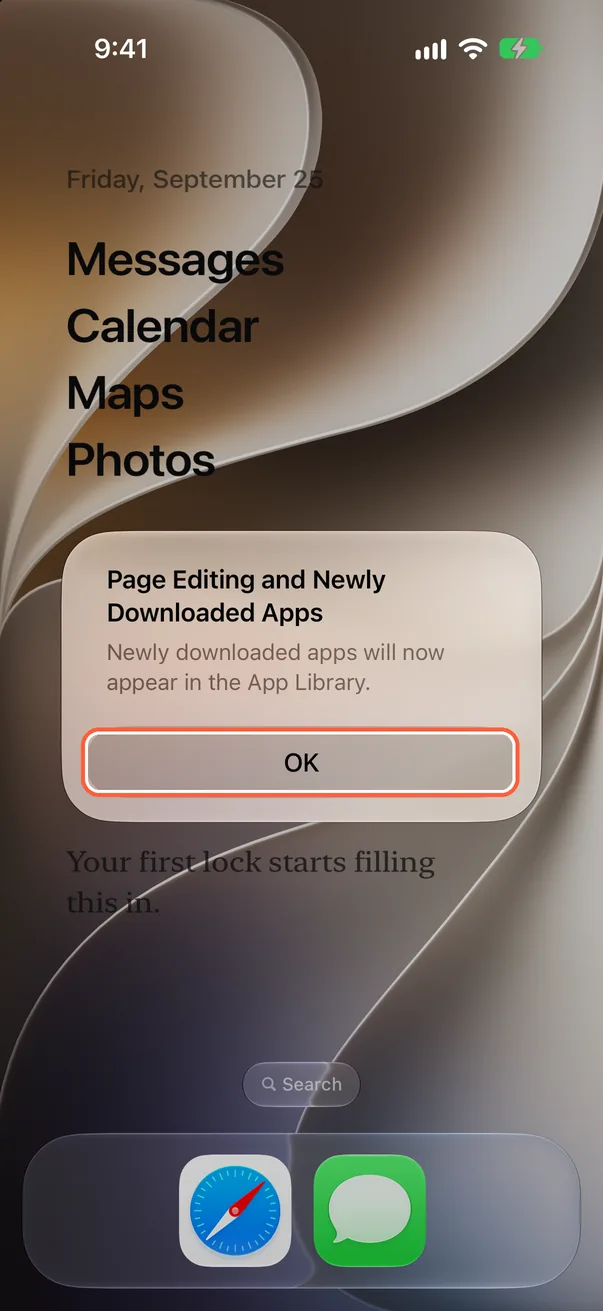
Confirm
If iOS says new downloads will appear in the App Library, tap “OK.”
Remove apps from the Dock
Apps in the Dock stay easy to open. Keep the ones you want there and remove the rest from the Home Screen.
-
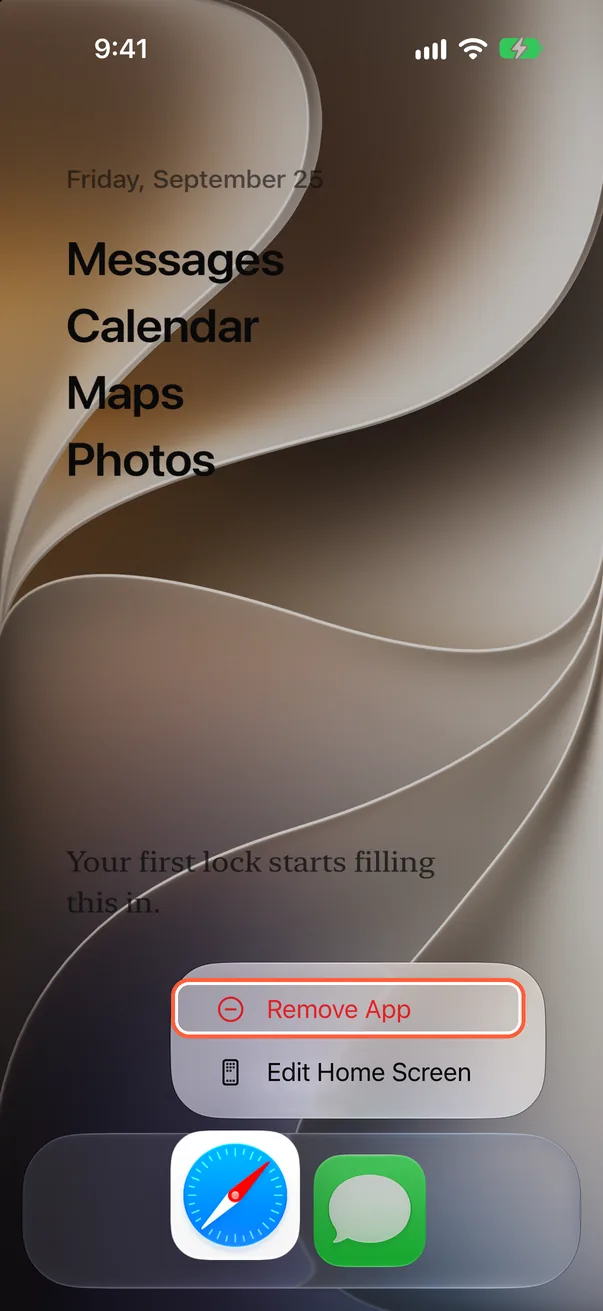
Touch and hold a dock app
Touch and hold an app in the Dock, then choose “Remove App.”
-
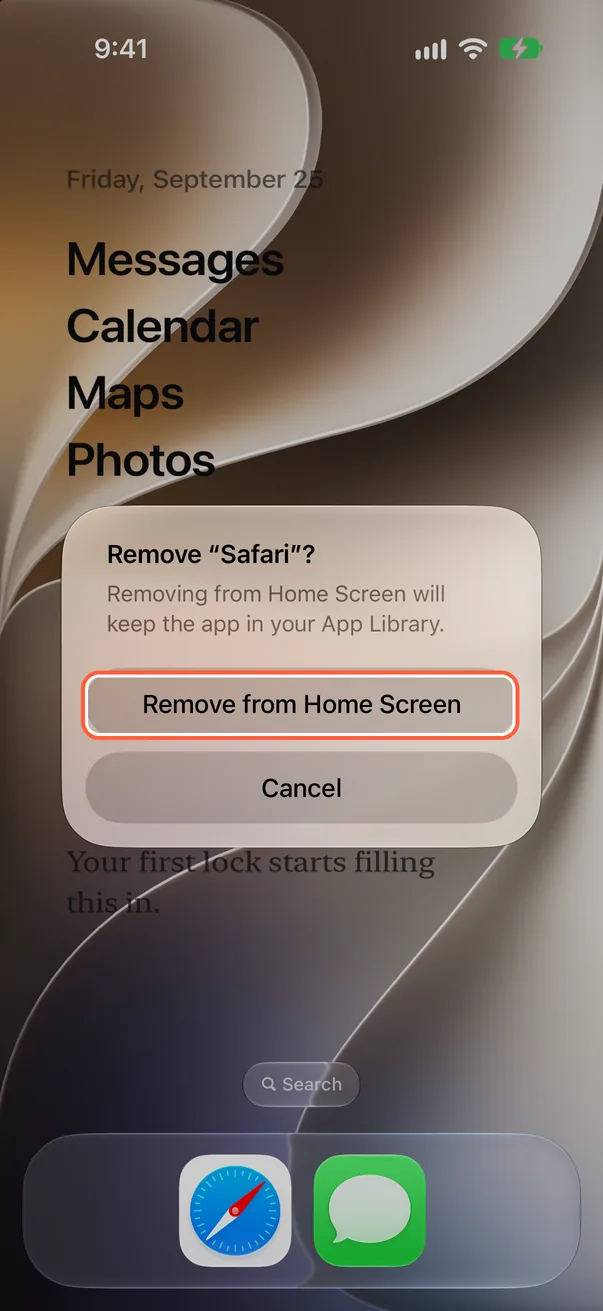
Tap “Remove from Home Screen”
Tap “Remove from Home Screen.” This does not delete the app.
-
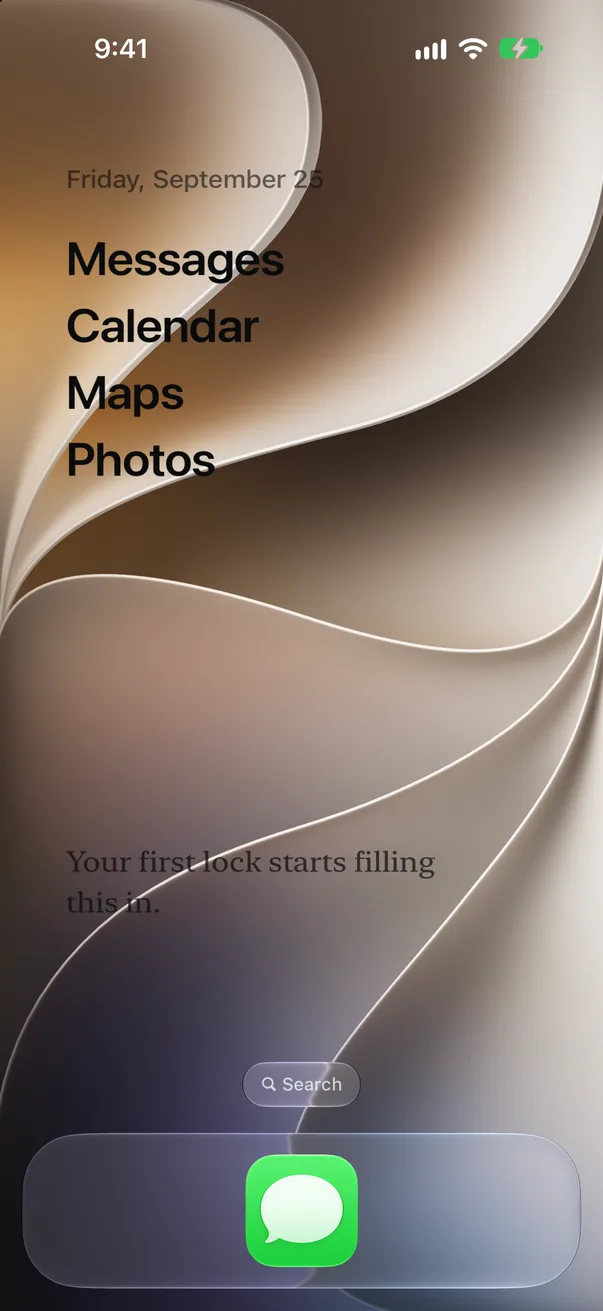
Keep only what you need
Remove other apps the same way. You can leave apps you use often, such as Phone or Messages.
Set a black wallpaper (optional)
With a black wallpaper and a dark Home Screen appearance, the white app names stand out. AnySpace can save a black image to Photos.
-
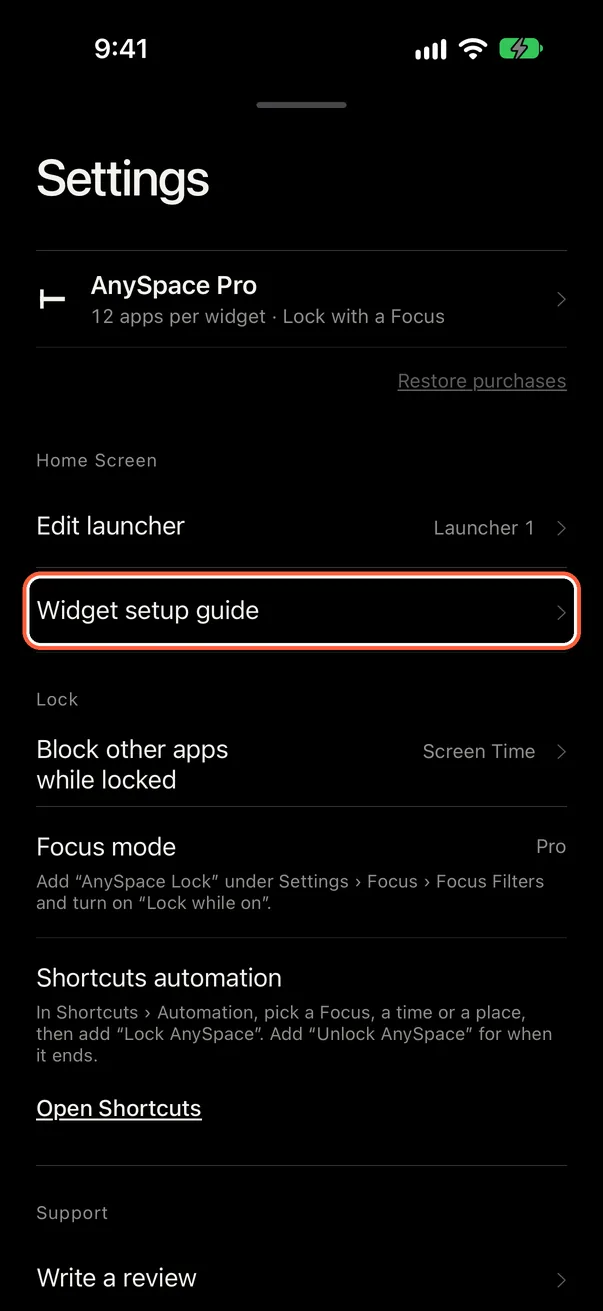
Open the widget setup guide
In AnySpace, open Settings › “Widget setup guide.”
-
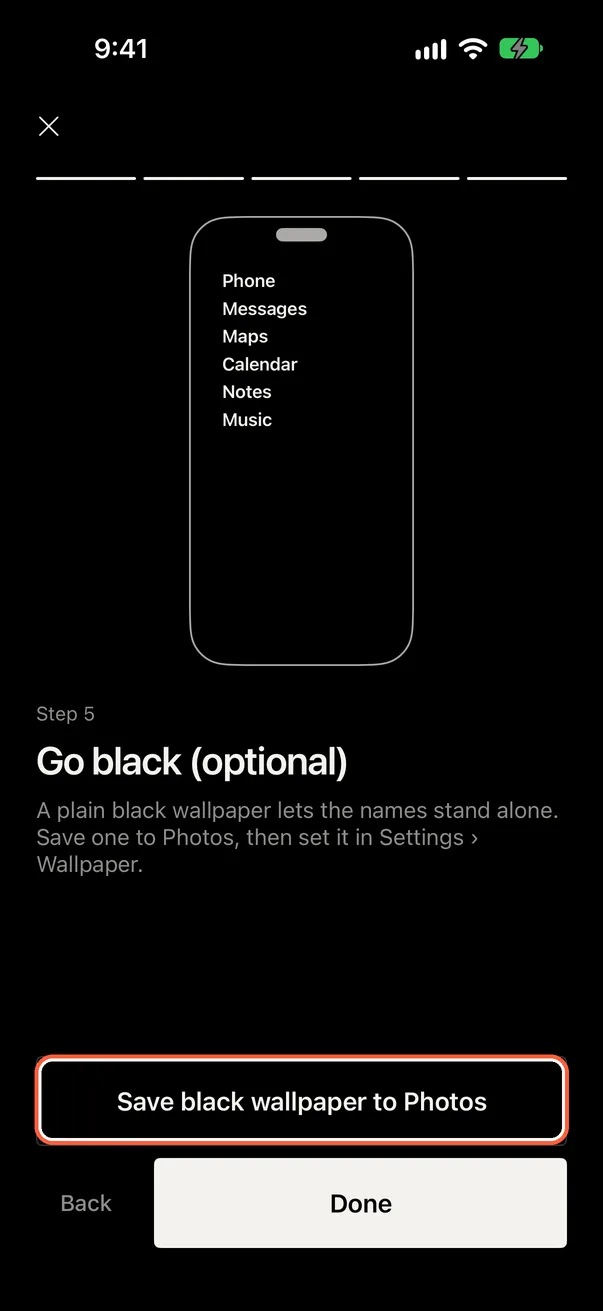
Save the black wallpaper
On the final step, tap “Save black wallpaper to Photos.”
-
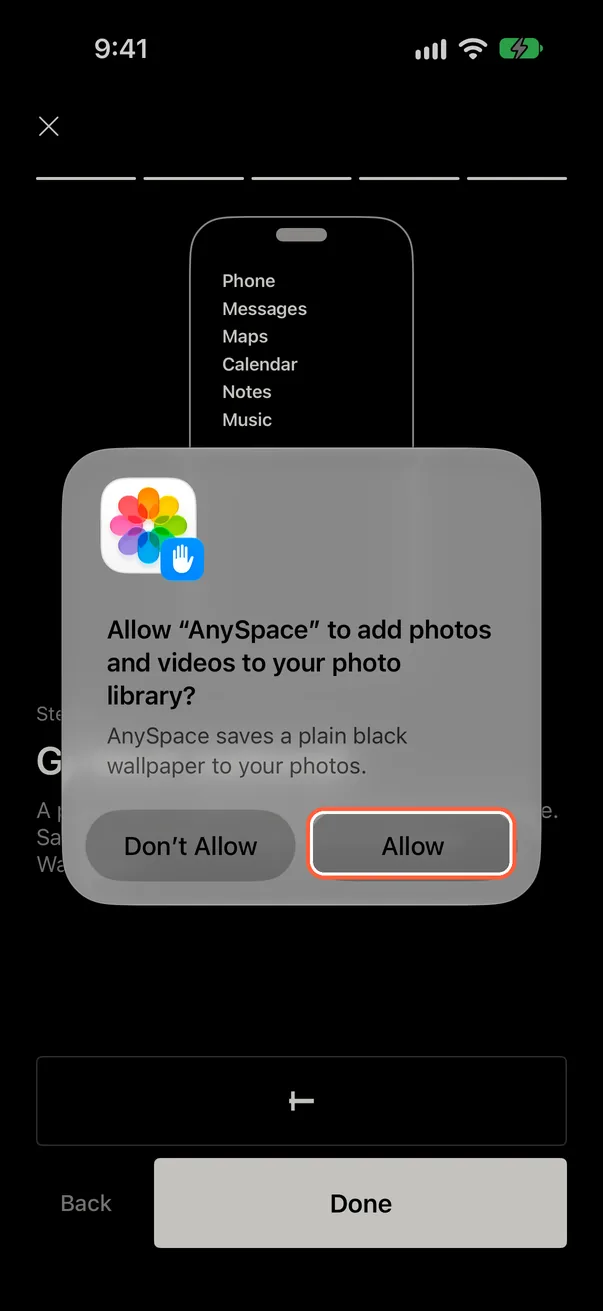
Allow adding photos
Tap “Allow” so AnySpace can add the image to Photos.
-
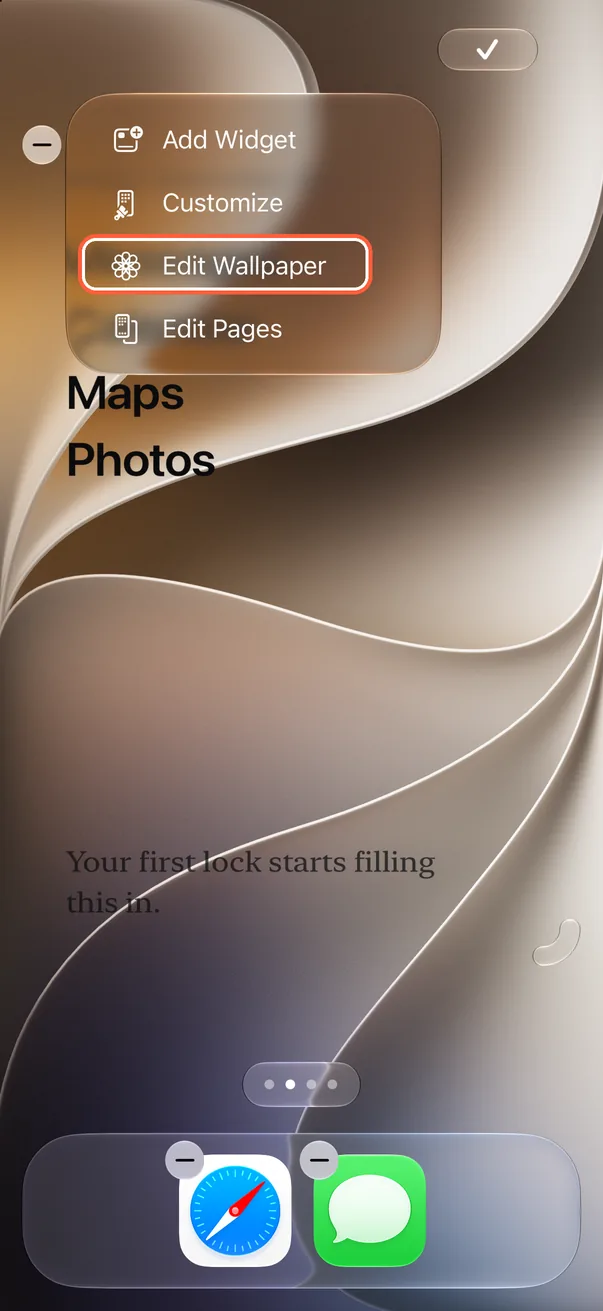
Open Edit Wallpaper
Touch and hold an empty spot on your Home Screen, tap “Edit” in the top-left corner, then choose “Edit Wallpaper.”
-
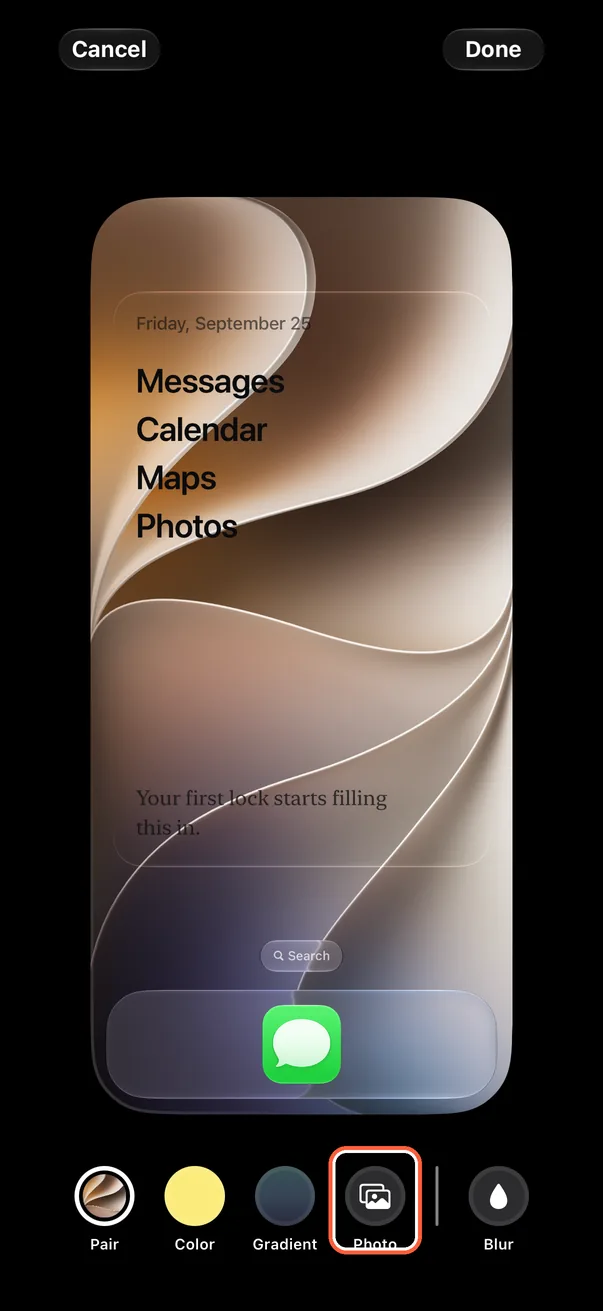
Tap “Photo”
Tap “Photo” at the bottom.
-
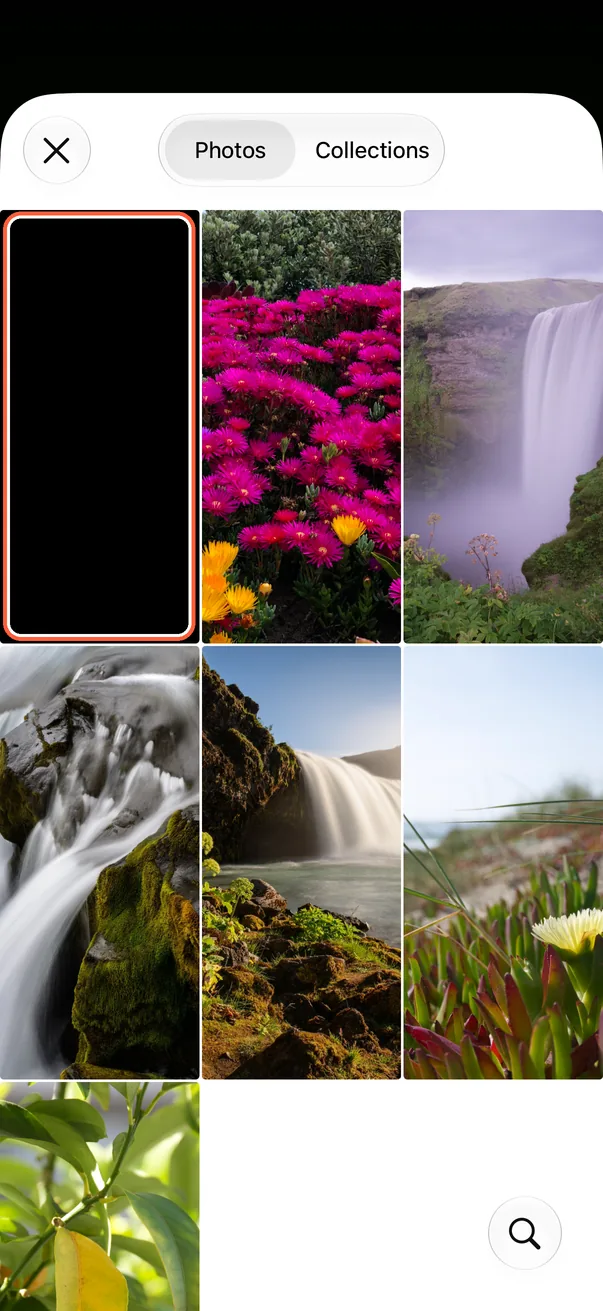
Pick the black image
Tap the black image you just saved.
-
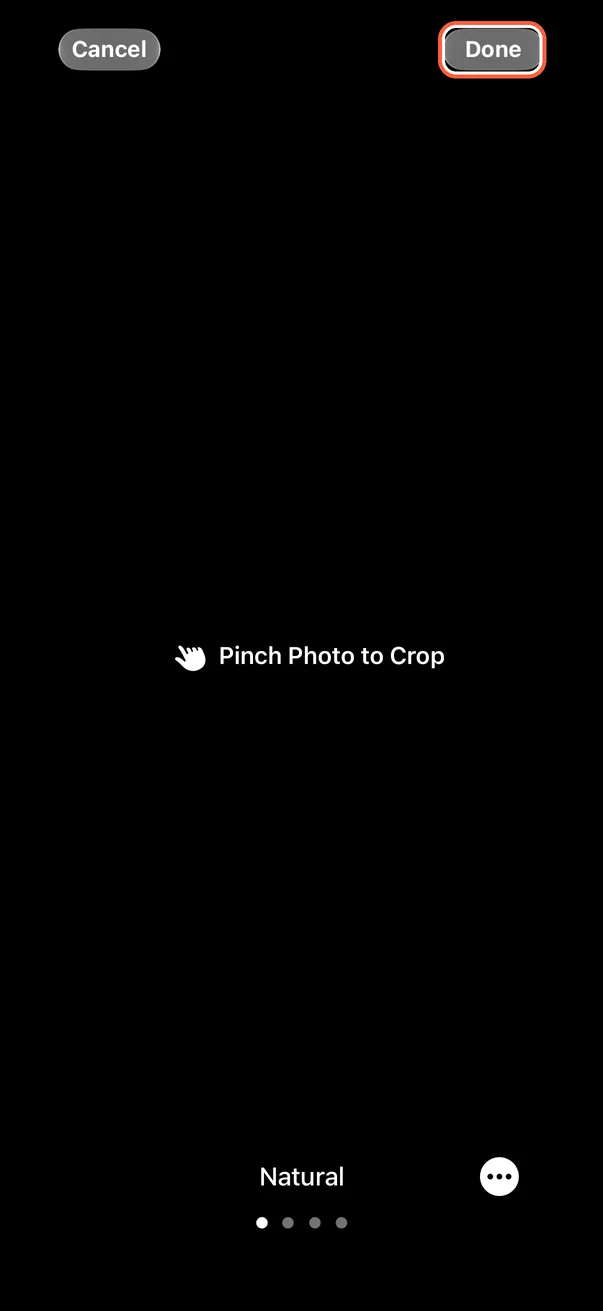
Tap Done
Tap “Done” in the top-right corner of the preview.
-
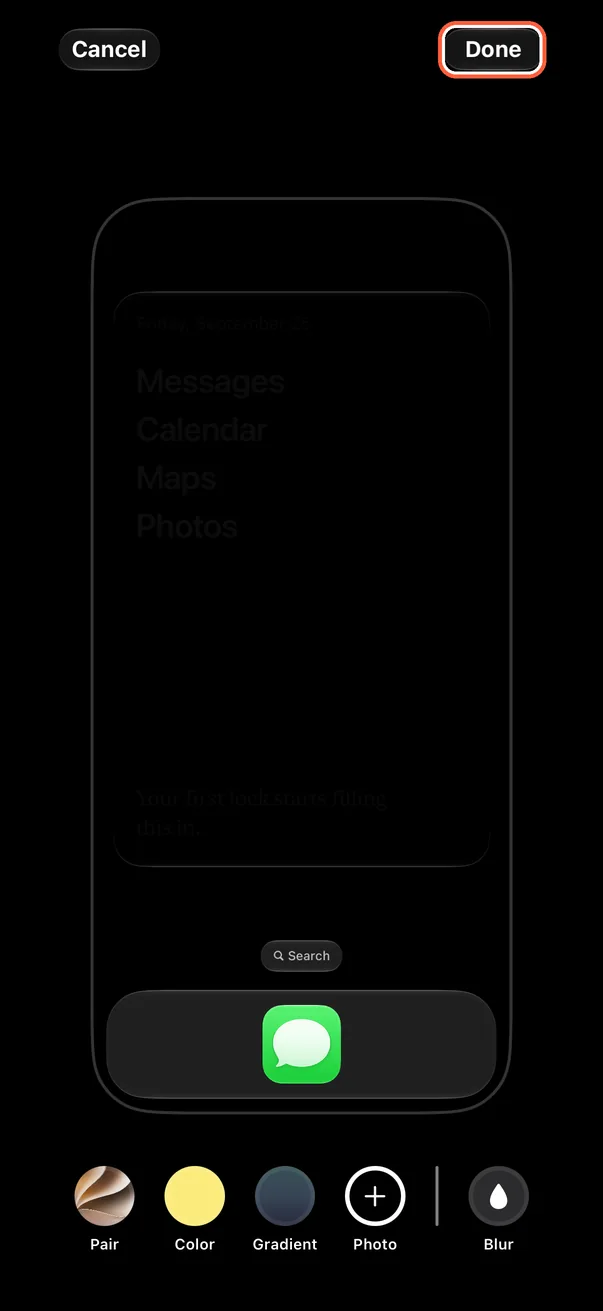
Tap Done again
When the Home Screen preview turns black, tap “Done” again.
-
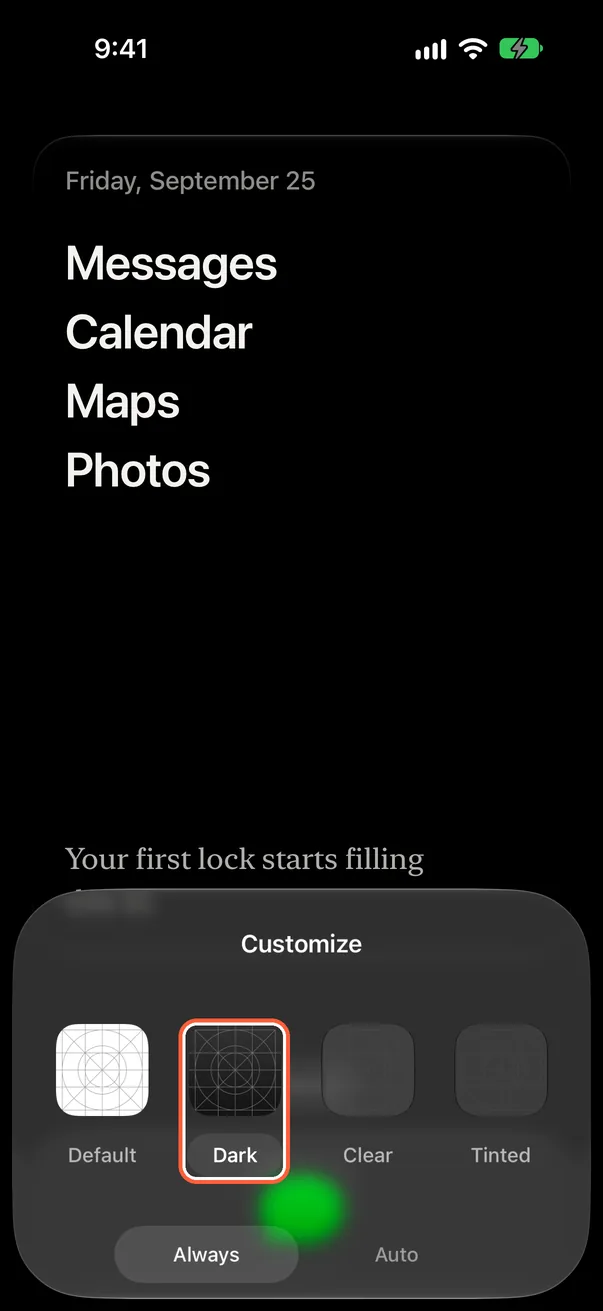
Make the Home Screen dark
The widget text follows your Home Screen appearance. Under “Edit” › “Customize,” choose “Dark” to show the names in white.
-
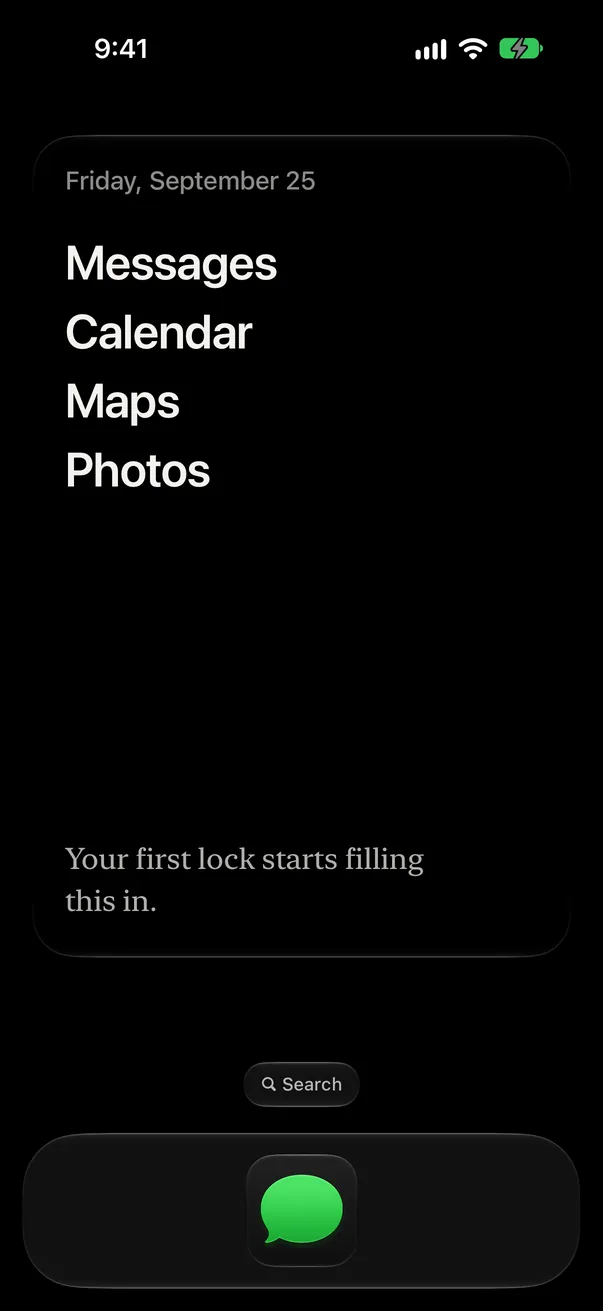
Finish editing
Tap an empty spot, then the check mark, to finish editing.
Lock
Slide to lock
With Screen Time permission, iOS blocks every app except those you allow. After a short bolt animation, the app shows the same list as your Home Screen widget and the elapsed lock time.
-
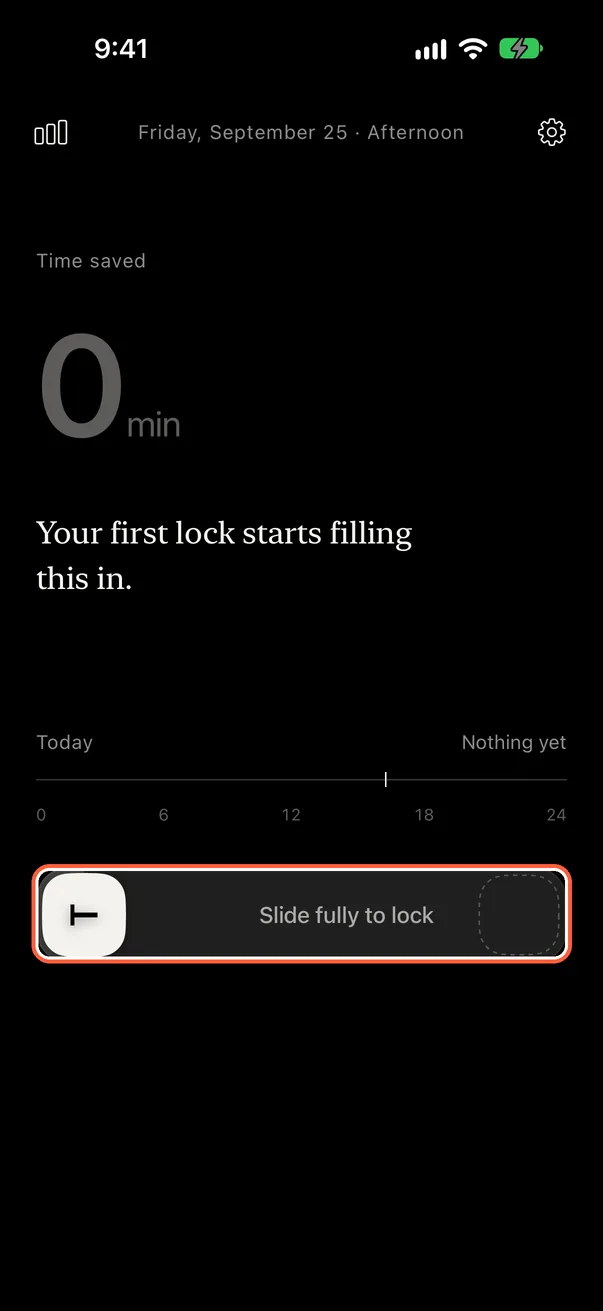
Slide all the way
In AnySpace, slide the bolt at the bottom all the way to the right. It will not lock if you let go halfway.
-
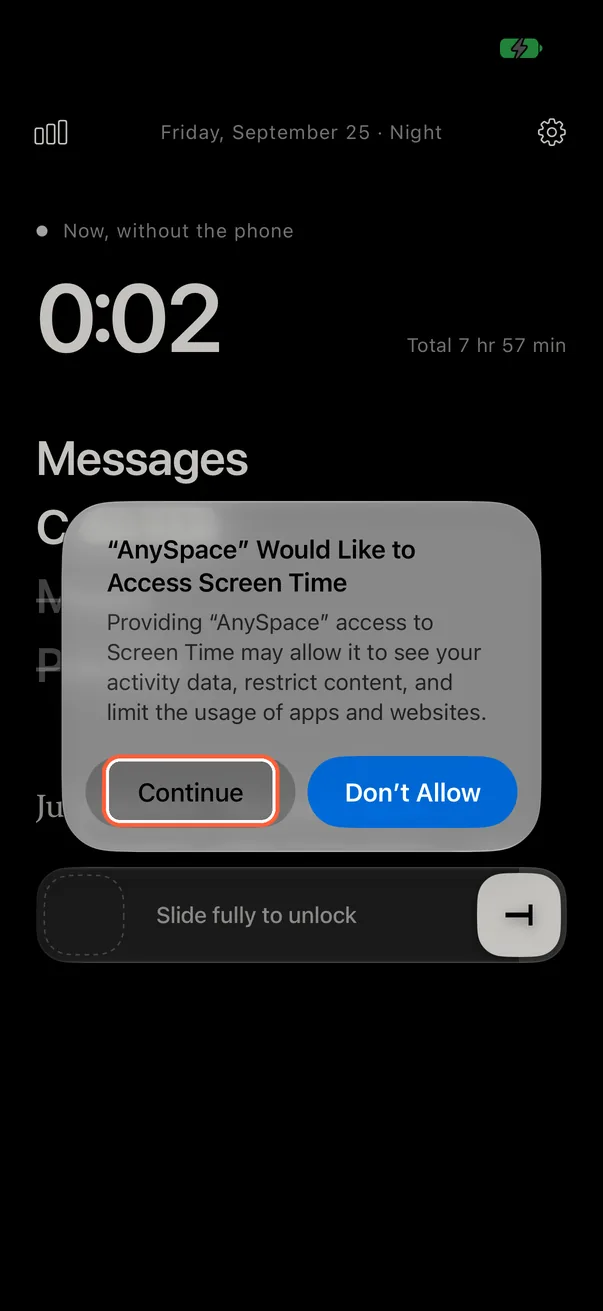
Allow Screen Time access (first time only)
The first time you lock, iOS asks for Screen Time access. Tap “Continue.”
-
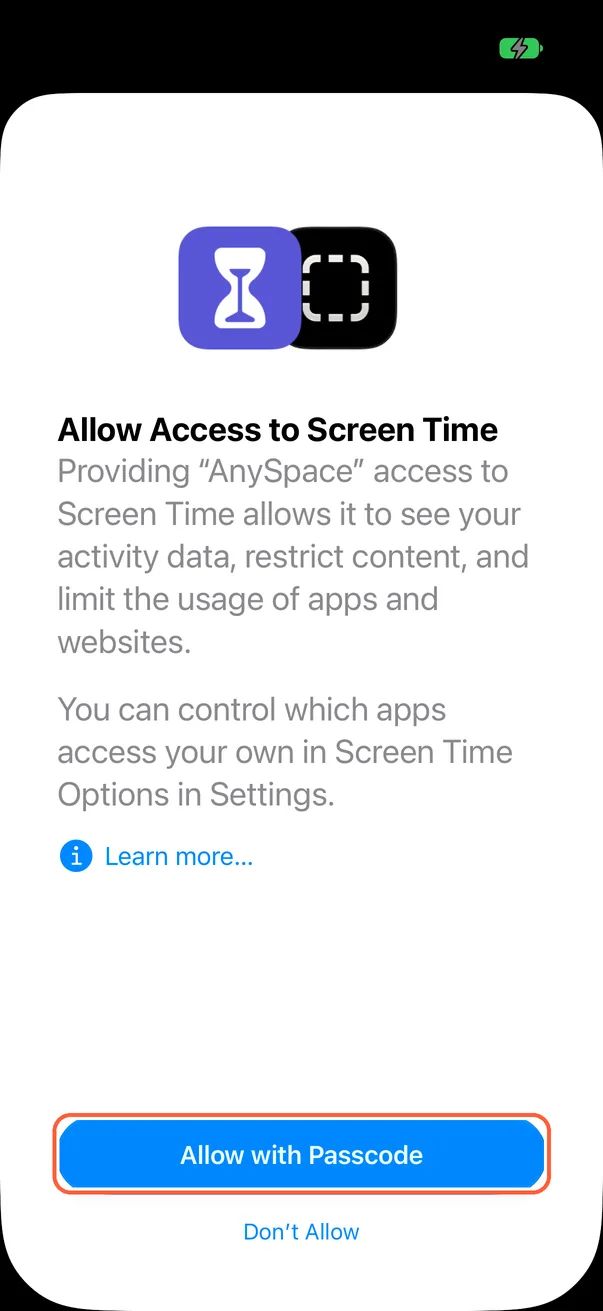
Allow with Passcode
Tap “Allow with Passcode” and enter your iPhone passcode. AnySpace needs this permission to block other apps.
-
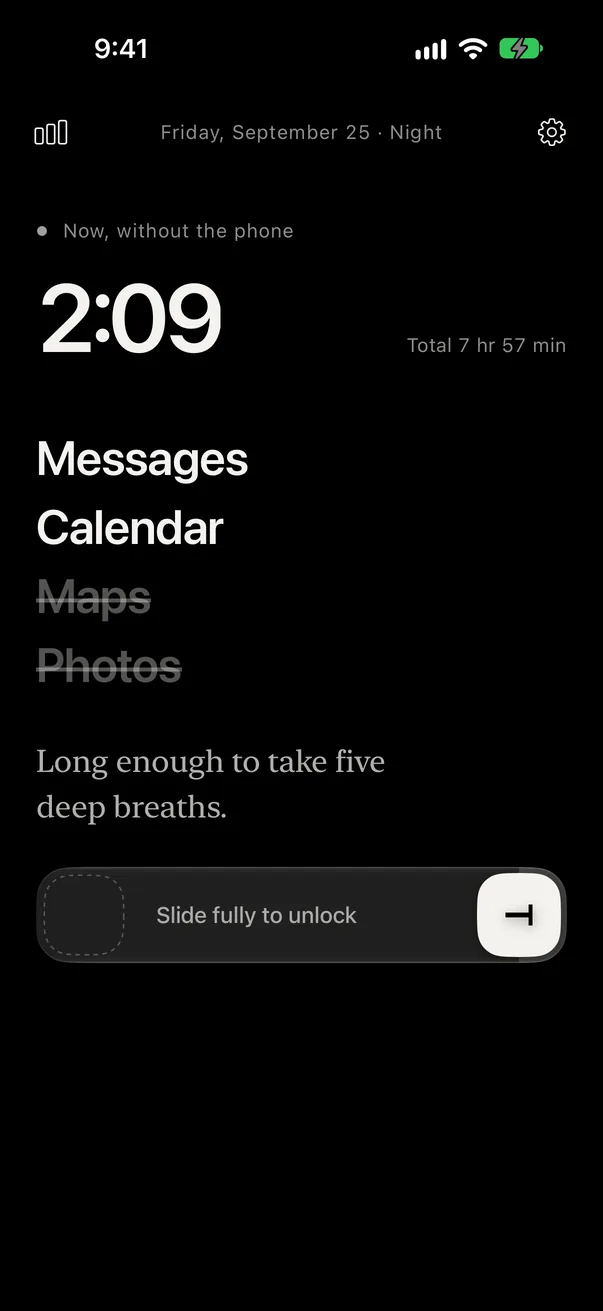
Locked
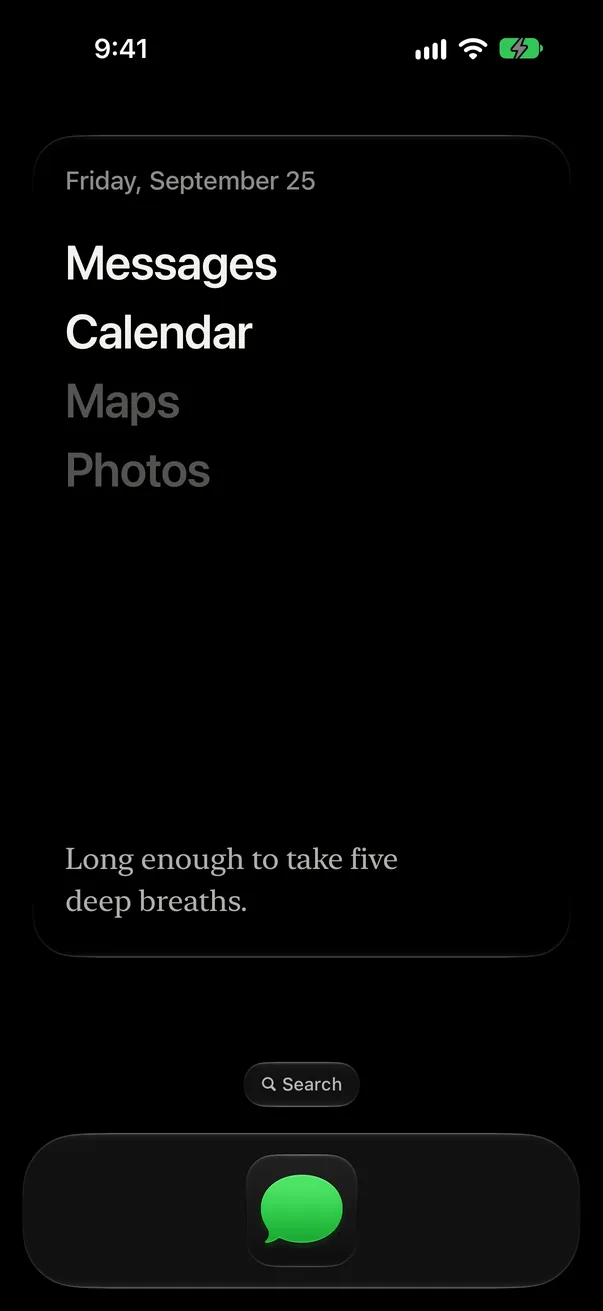
Elapsed lock time appears at the top, with the same app list as your widget below. The allowed apps stay bold; the rest are struck through.
-
The widget shows the app list too
In the widget, the allowed app names at the top stay bold and the others fade.
-
When you open a blocked app
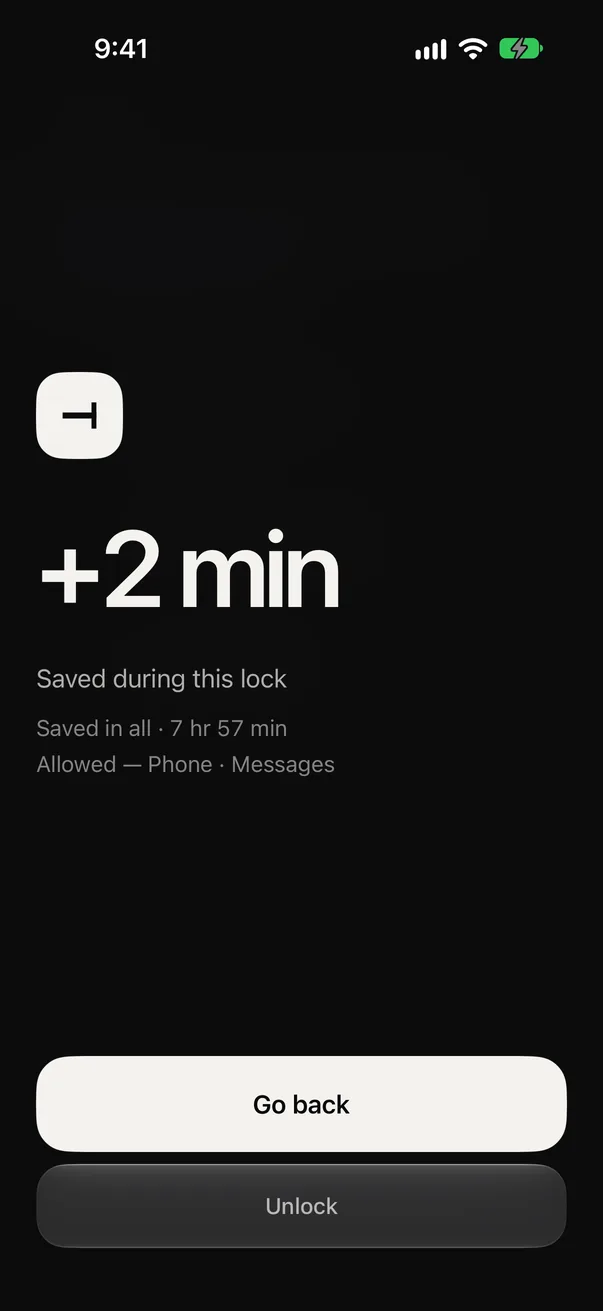
The screen shows “time saved” during this lock. Tap “Go back” to keep the lock on.
Unlock
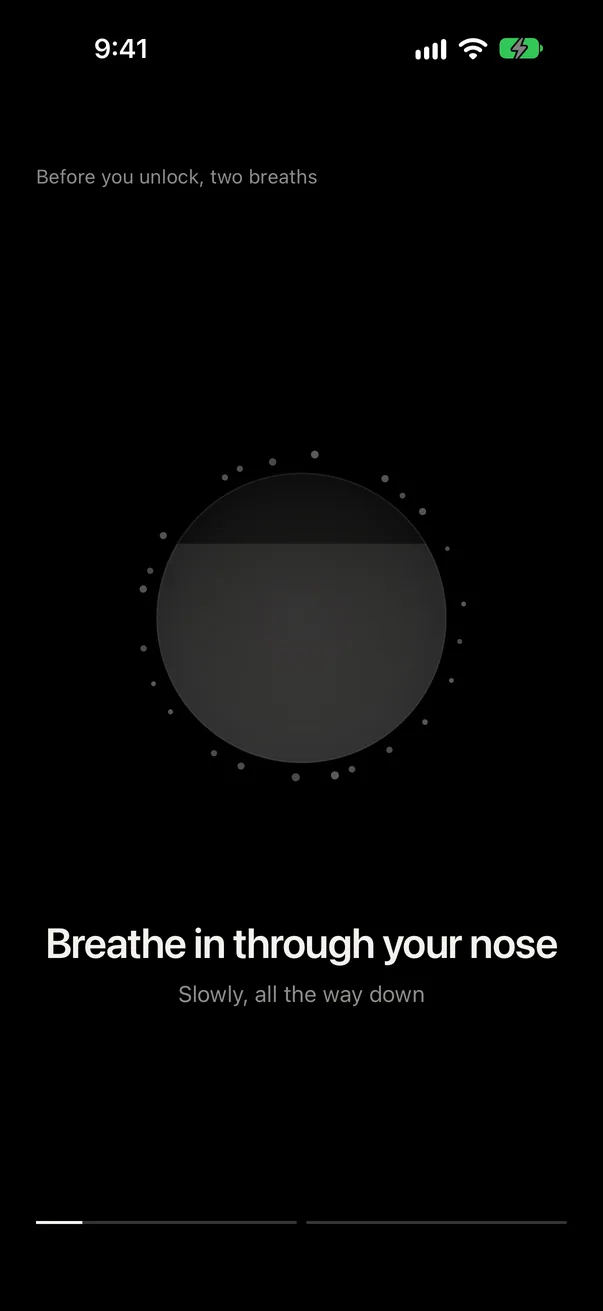
Before you unlock, AnySpace shows a two-breath pause. Then you can unlock or take a short break.
-
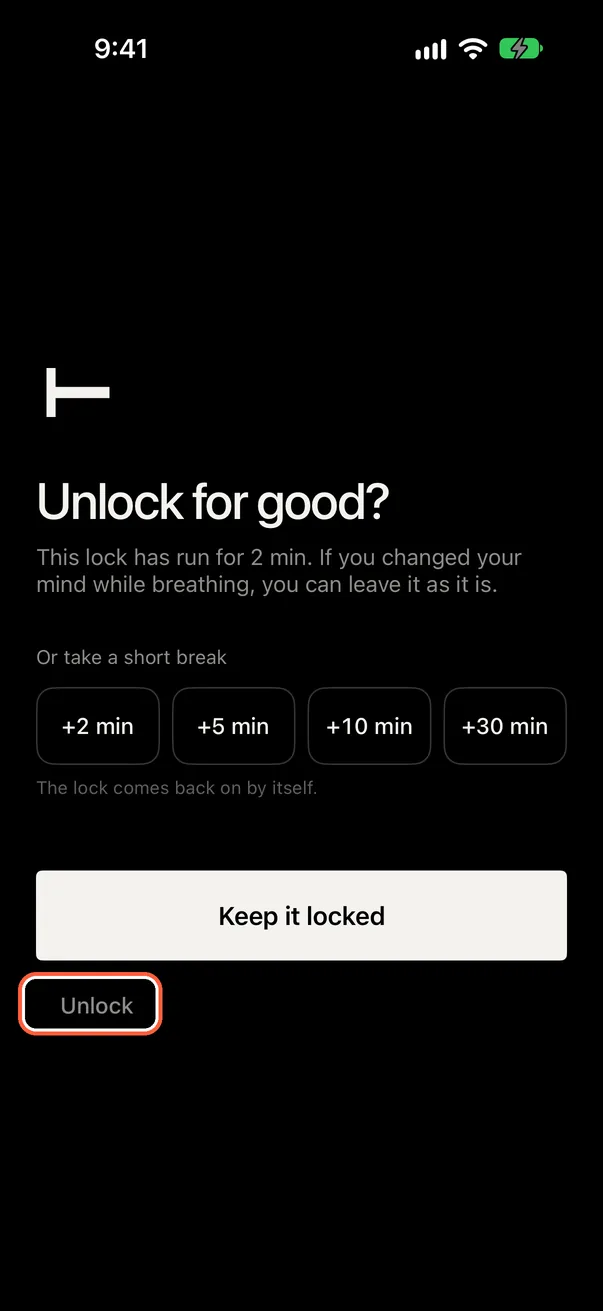
Tap Unlock
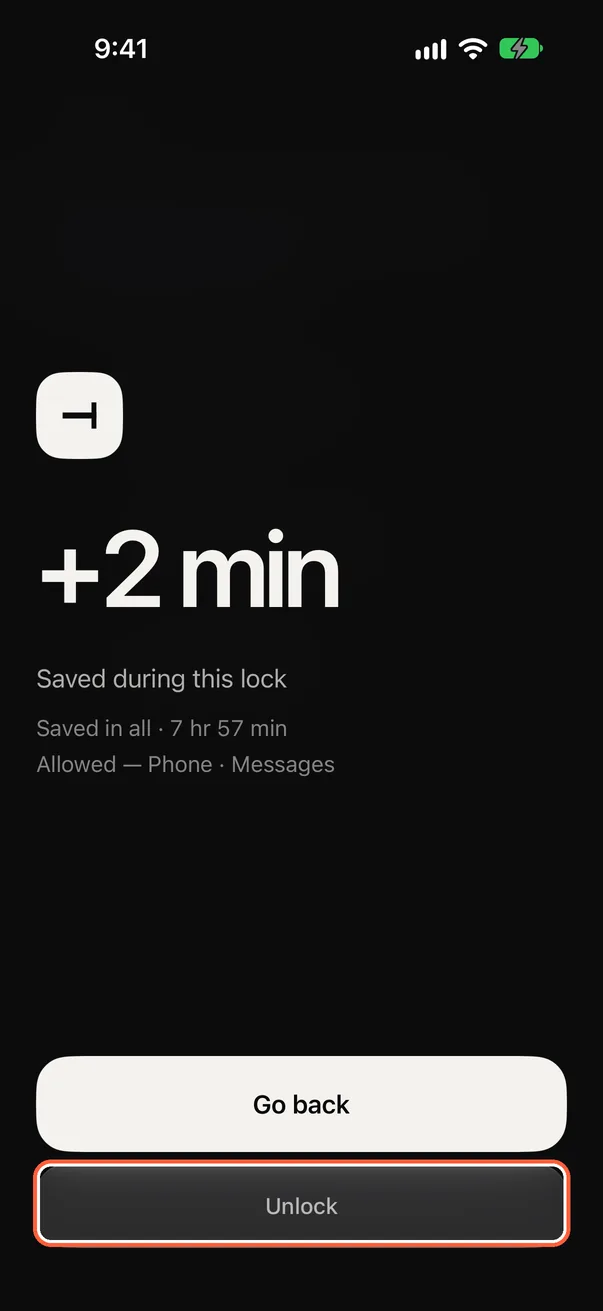
Tap “Unlock” on the blocked-app screen, or slide the bolt in AnySpace all the way to the left.
-
Two breaths
First you get a few seconds to settle. Then breathe in as the circle fills, and out as it empties. There is a short pause before the second breath too.
-
Unlock, or take a short break
Tap “Unlock” to end the lock. For a short break, choose +2 min, +5 min, +10 min, or +30 min. AnySpace relocks when the break ends.
Quick lock · Automation
Add a lock button to Control Center
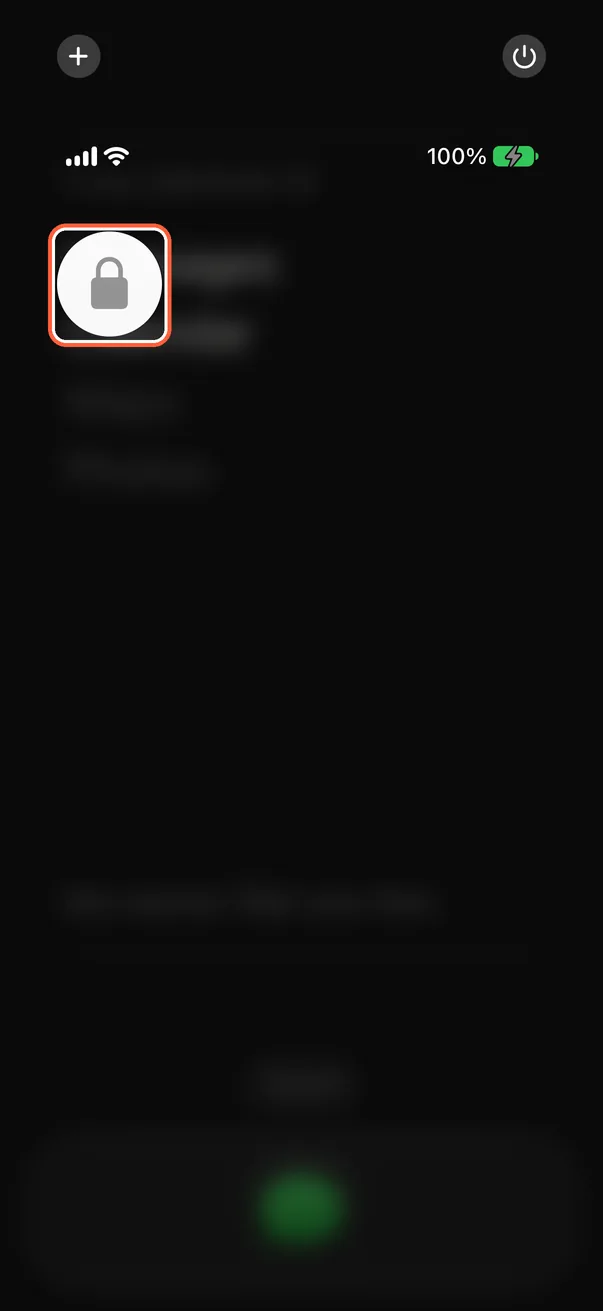
Lock from Control Center without opening AnySpace. You can add the same control to a button at the bottom of your Lock Screen.
-
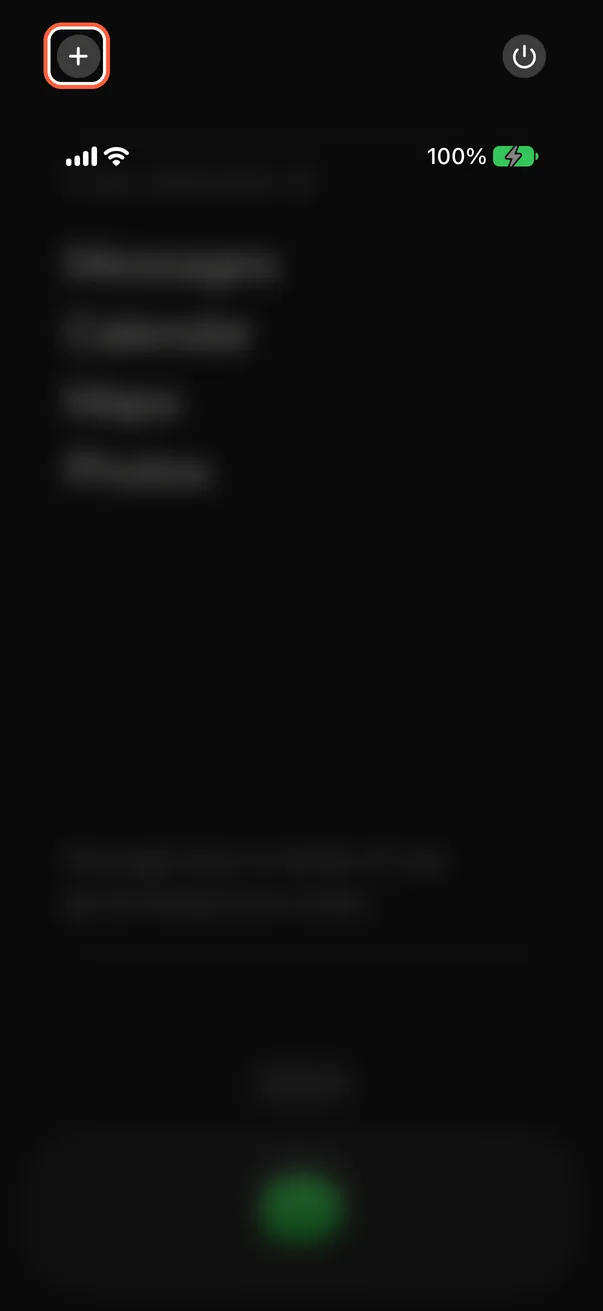
Edit Control Center
Swipe down from the top-right corner to open Control Center, then tap + in the top-left corner.
-
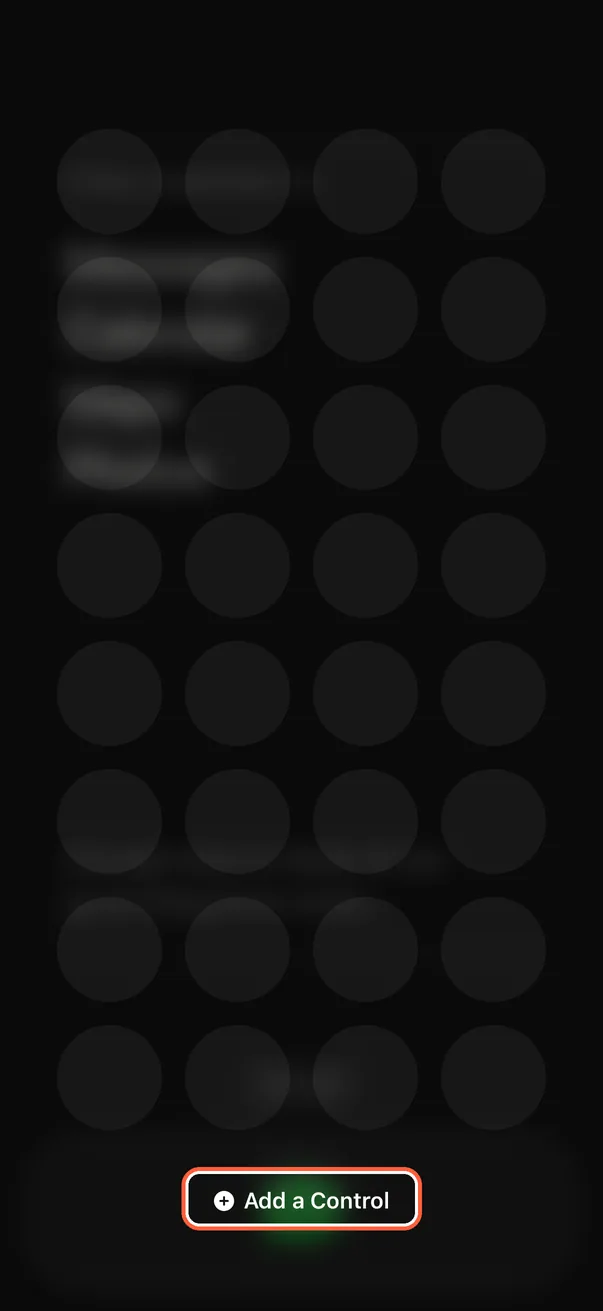
Tap “Add a Control”
Tap “Add a Control” at the bottom.
-
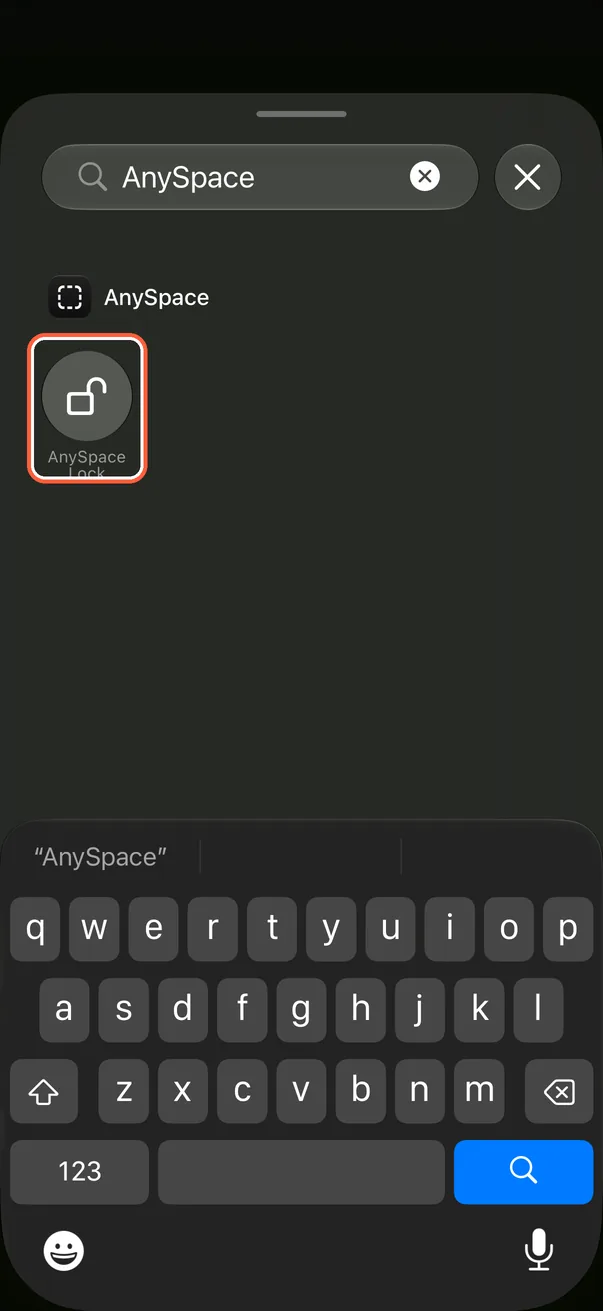
Add AnySpace Lock
Type AnySpace in the search field, then tap “AnySpace Lock.”
-
Tap to lock
Finish editing, then tap the AnySpace Lock control in Control Center to lock.
Lock with the Action button
On an iPhone with an Action button, press and hold it to lock.
-
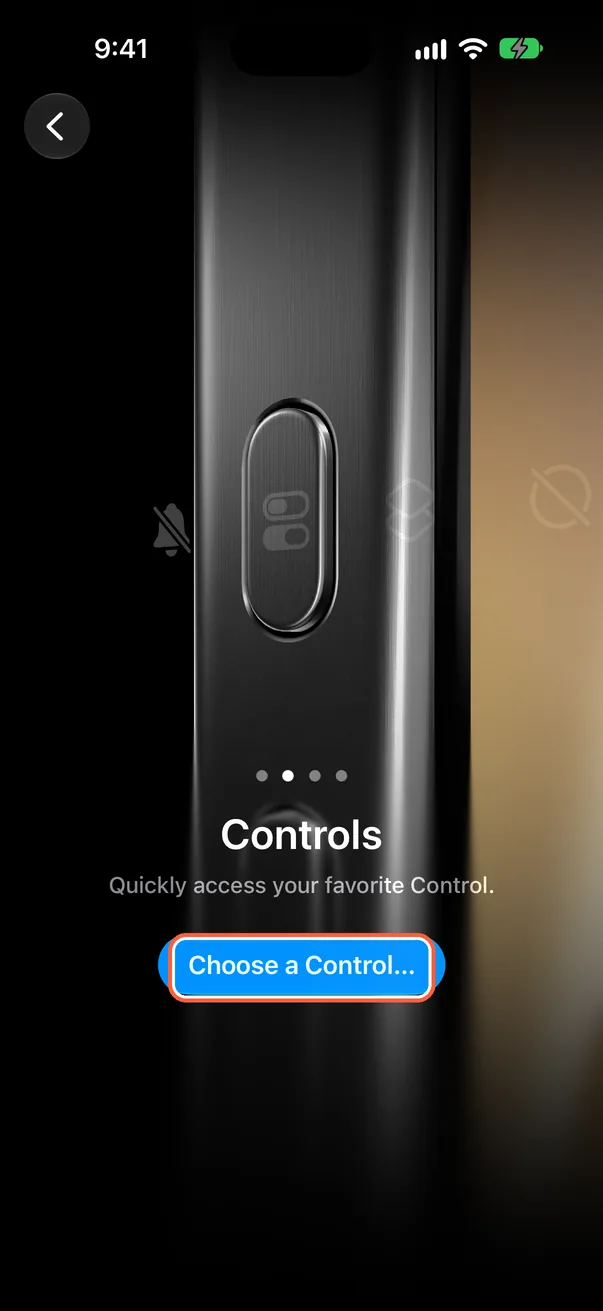
Open Action button settings
In Settings › “Action Button,” swipe to “Controls,” then tap “Choose a Control…”.
-
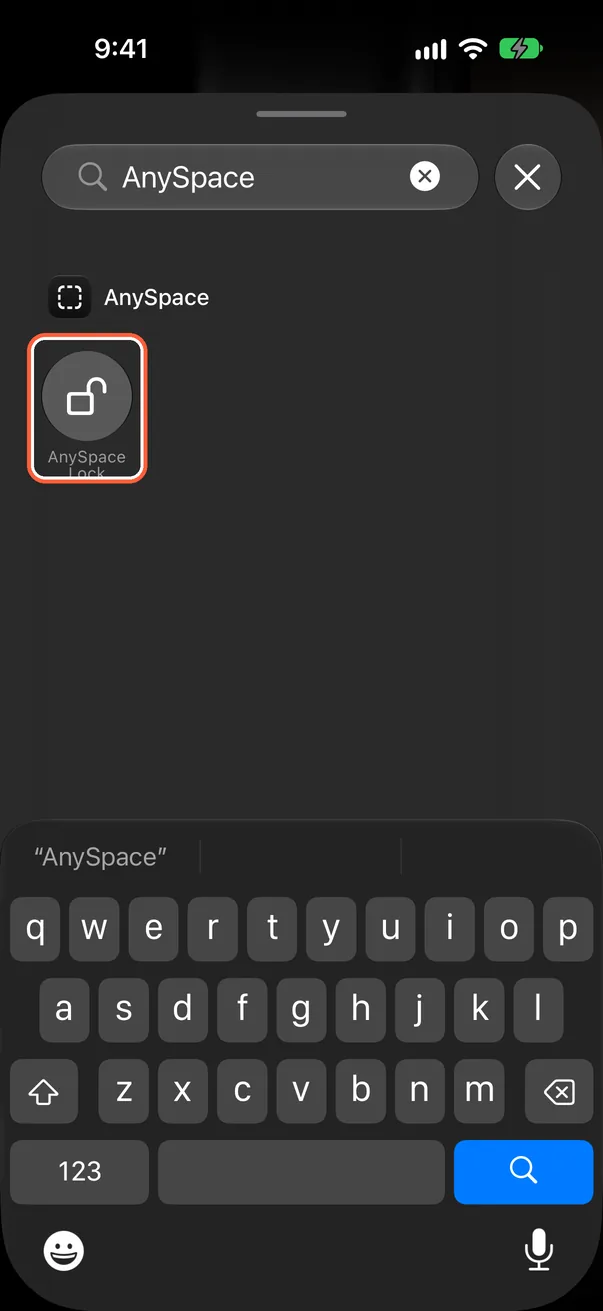
Choose AnySpace Lock
Type AnySpace in the search field, then tap “AnySpace Lock.”
-
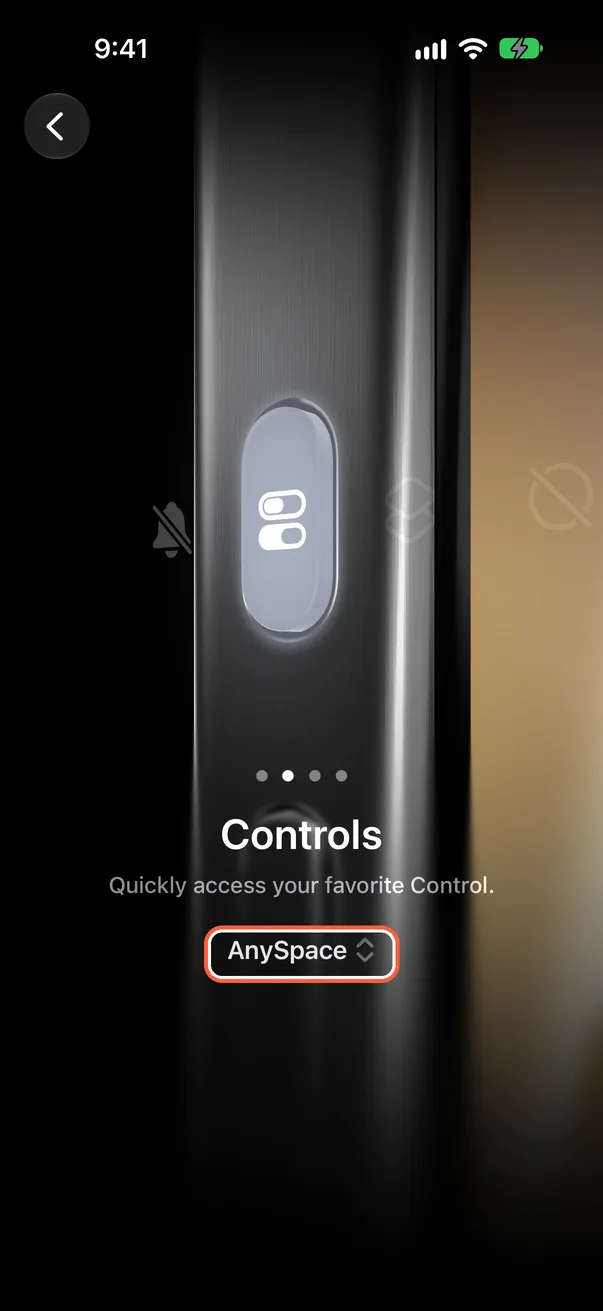
All set
When AnySpace Lock appears below, setup is complete. Press and hold the Action button to lock.
Lock at a set time (Shortcuts automation)
A Shortcuts automation can lock AnySpace every day at 9:30 PM. You can also choose triggers such as arriving at or leaving a place, or turning on a Focus.
-
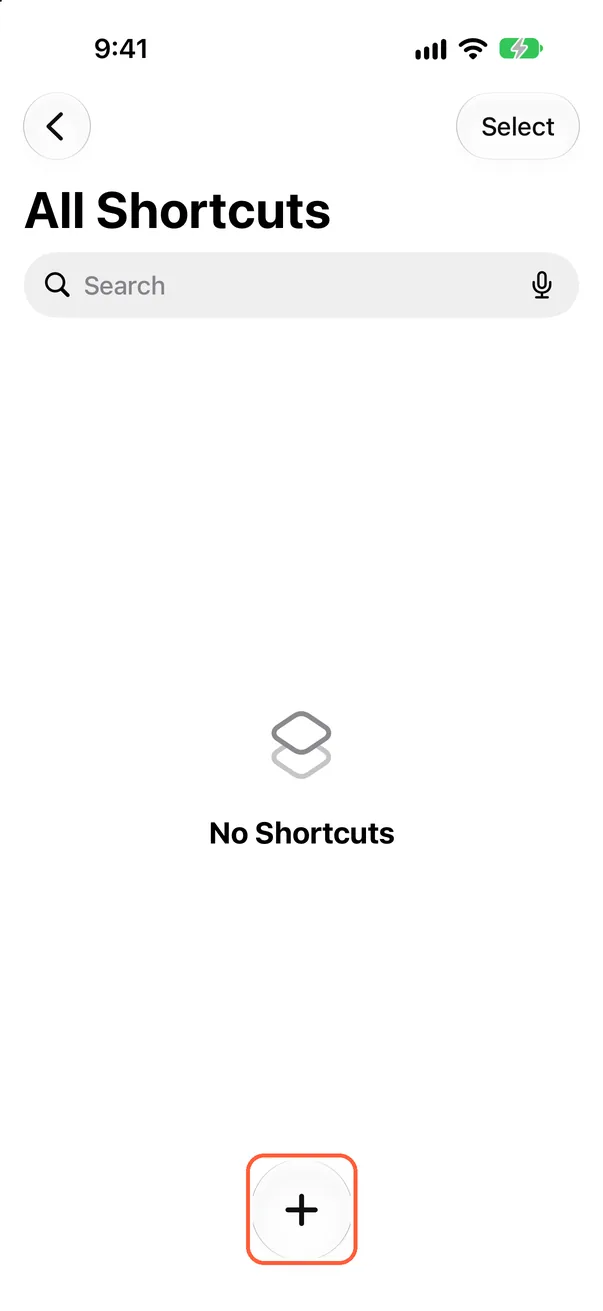
Create a new shortcut
Open Shortcuts and tap + at the bottom.
-
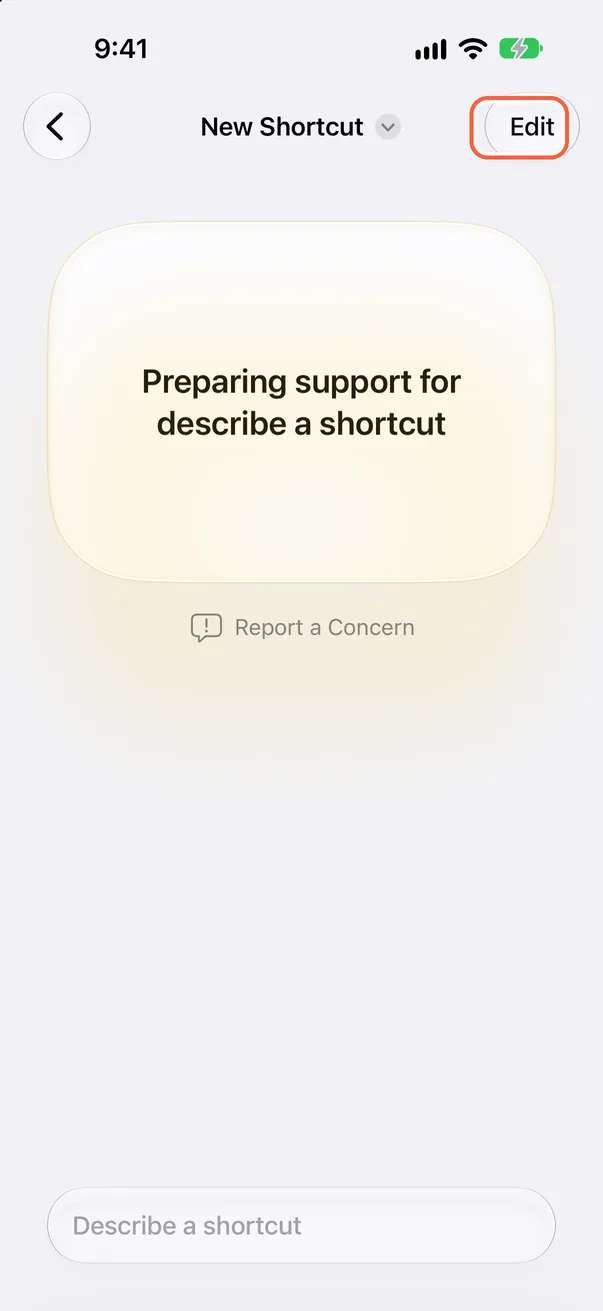
Tap Edit
Tap “Edit” in the top-right corner.
-
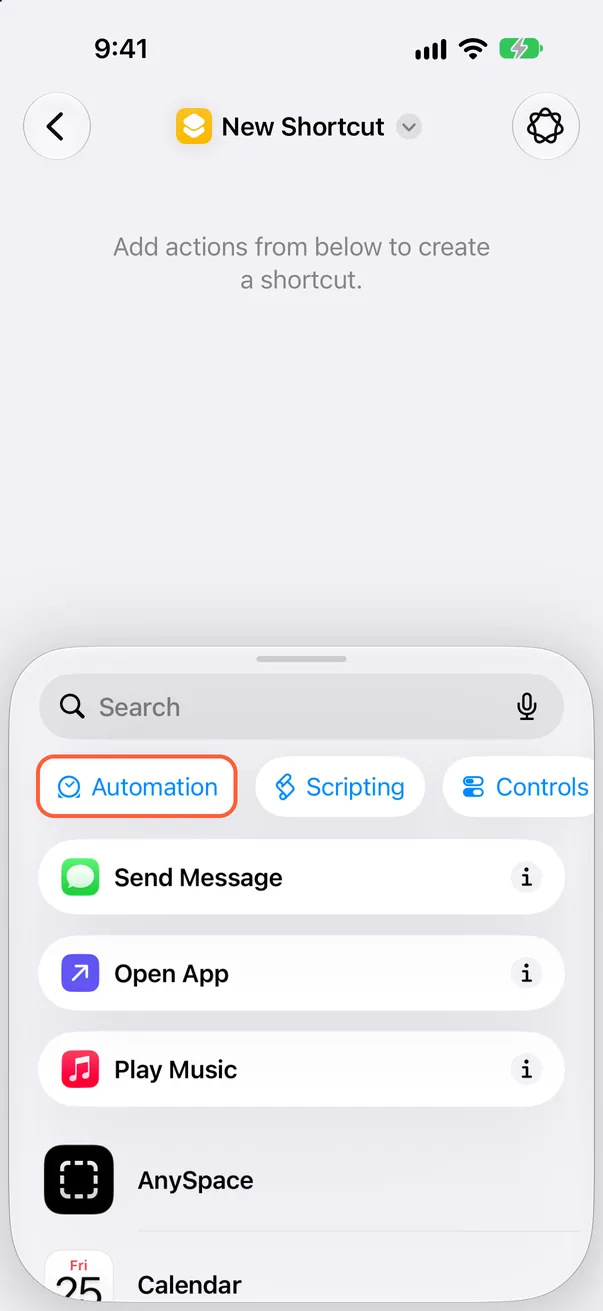
Tap “Automation”
Tap “Automation” in the list at the bottom.
-
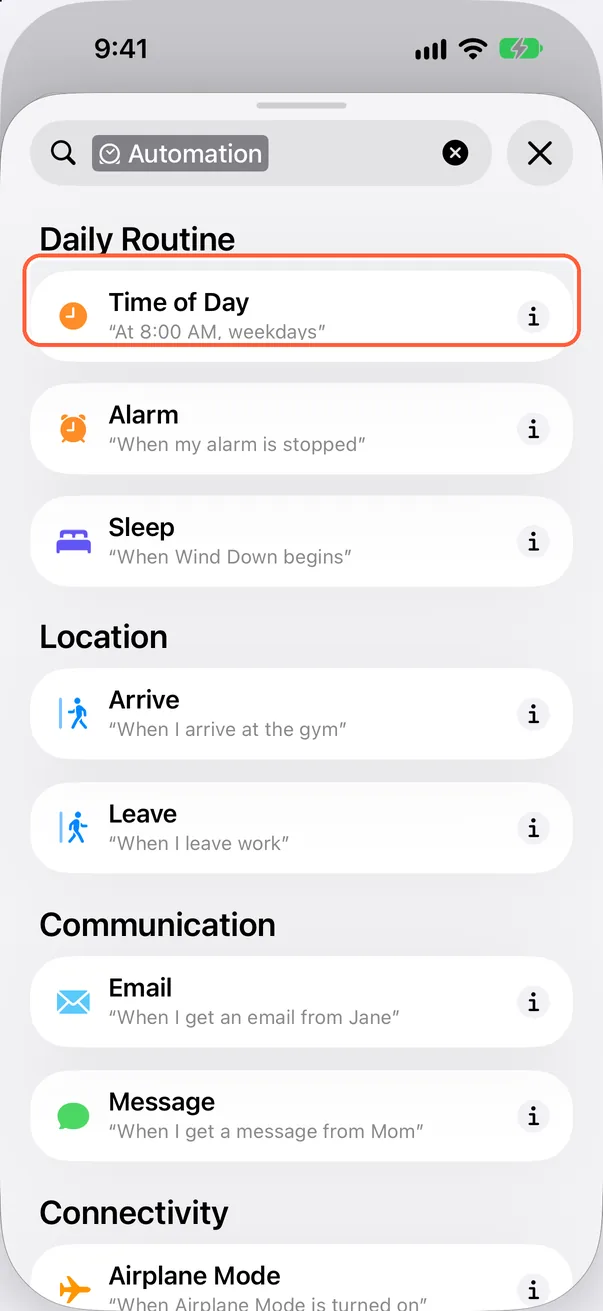
Choose “Time of Day”
Tap “Time of Day” at the top. To use a place or another trigger, choose it here instead.
-
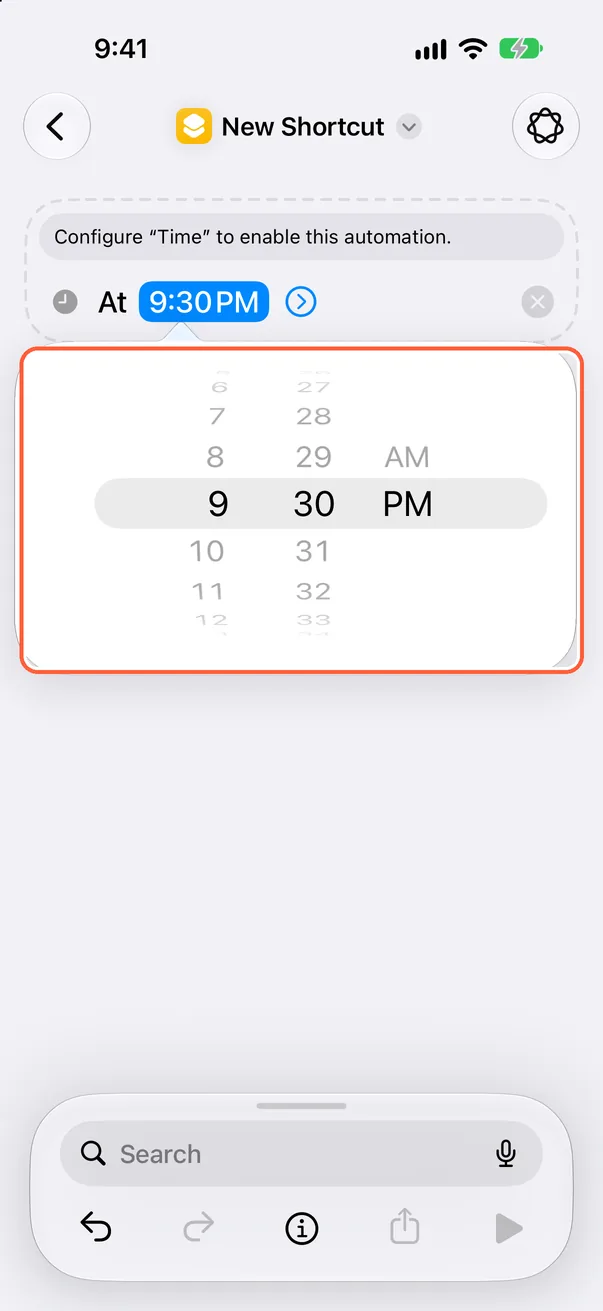
Set the time
Tap the time field and set when to lock.
-
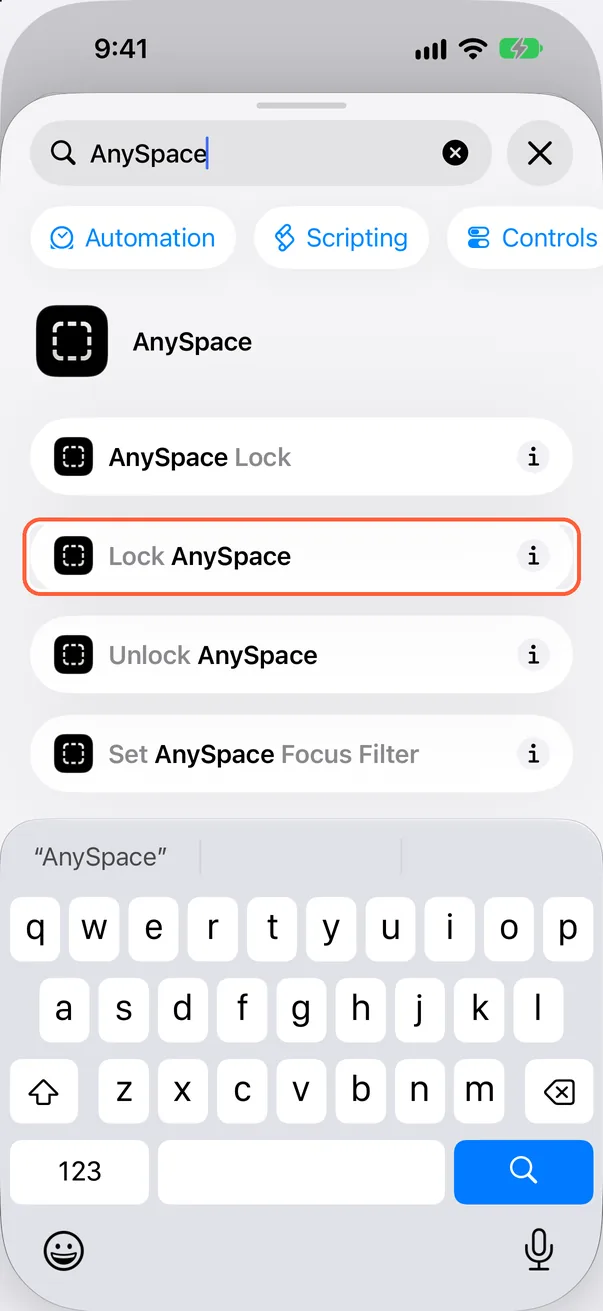
Add “Lock AnySpace”
Type AnySpace in the search field at the bottom, then tap “Lock AnySpace.”
-
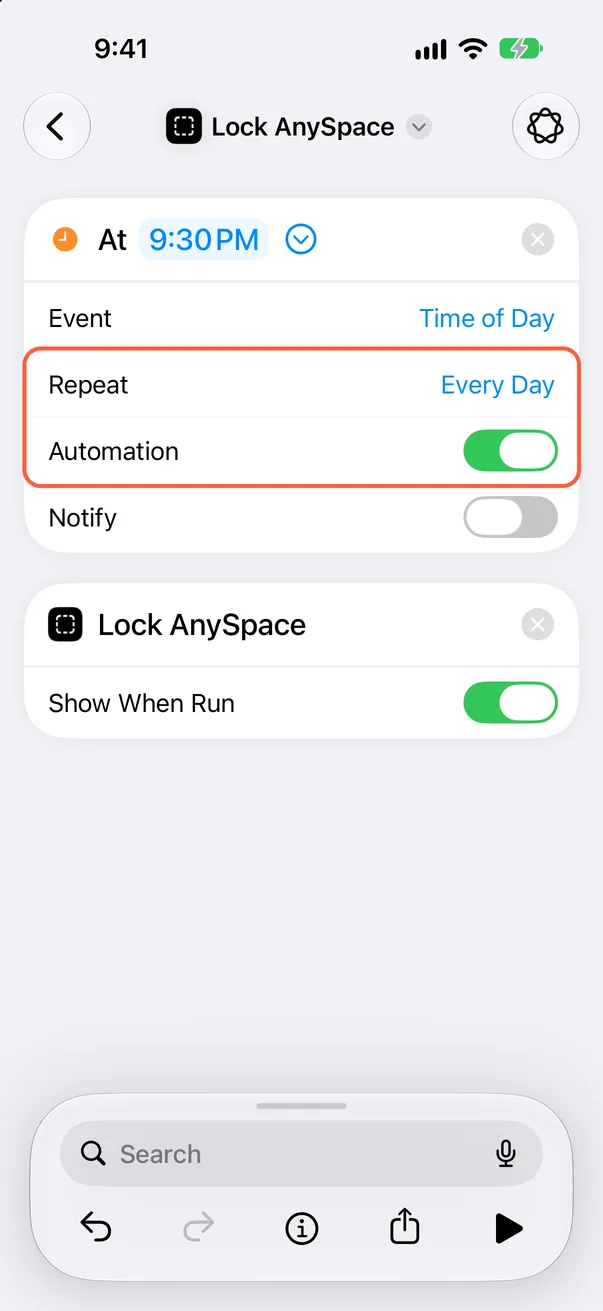
Check Repeat and Automation
Tap the arrow next to the time. Check that “Repeat” is set to “Every Day” and the automation is on.
-
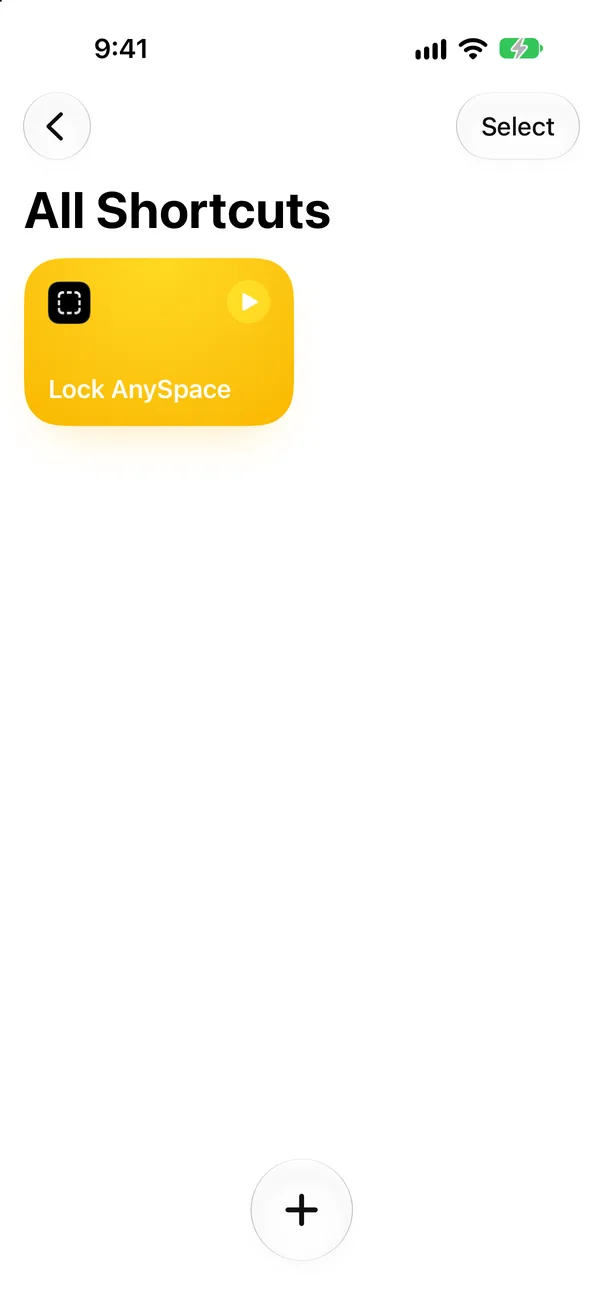
Save the automation
Tap the back button in the top-left corner to save. AnySpace will lock at the set time.
Lock with a Focus (Pro)
When a Focus such as Sleep or Work turns on, AnySpace locks. When it turns off, the lock started by that Focus ends.
-
Add a Focus filter
- In Settings › “Focus,” tap the Focus you want, such as “Sleep.”
- Under “Focus Filters,” tap “Add Filter.”
- Choose “AnySpace Lock,” turn on “Lock while on,” then tap “Add.”
AnySpace now locks when this Focus turns on and ends that lock when it turns off.